Create and edit vehicles
Use this page when you need to register a new vehicle or update an existing one. The form has 7 sections.
Assumes: you have vehicle-create or vehicle-edit.
Create a new vehicle
- Go to
/assets/vehicle - Click Create / Add new → opens
/assets/vehicle/create - Fill in the sections below
- Save
On success the system generates a code automatically and shows the vehicle detail.
Edit a vehicle
- Open the detail page or use ⋮ → Edit
- Go to
/assets/vehicle/$vehicleId/edit - Change the fields you need and save
Changing
registration_number or tank_numberChanging these values may trigger a confirmation because they can affect code regeneration (Code regeneration warning).
Section 1 — Basic info
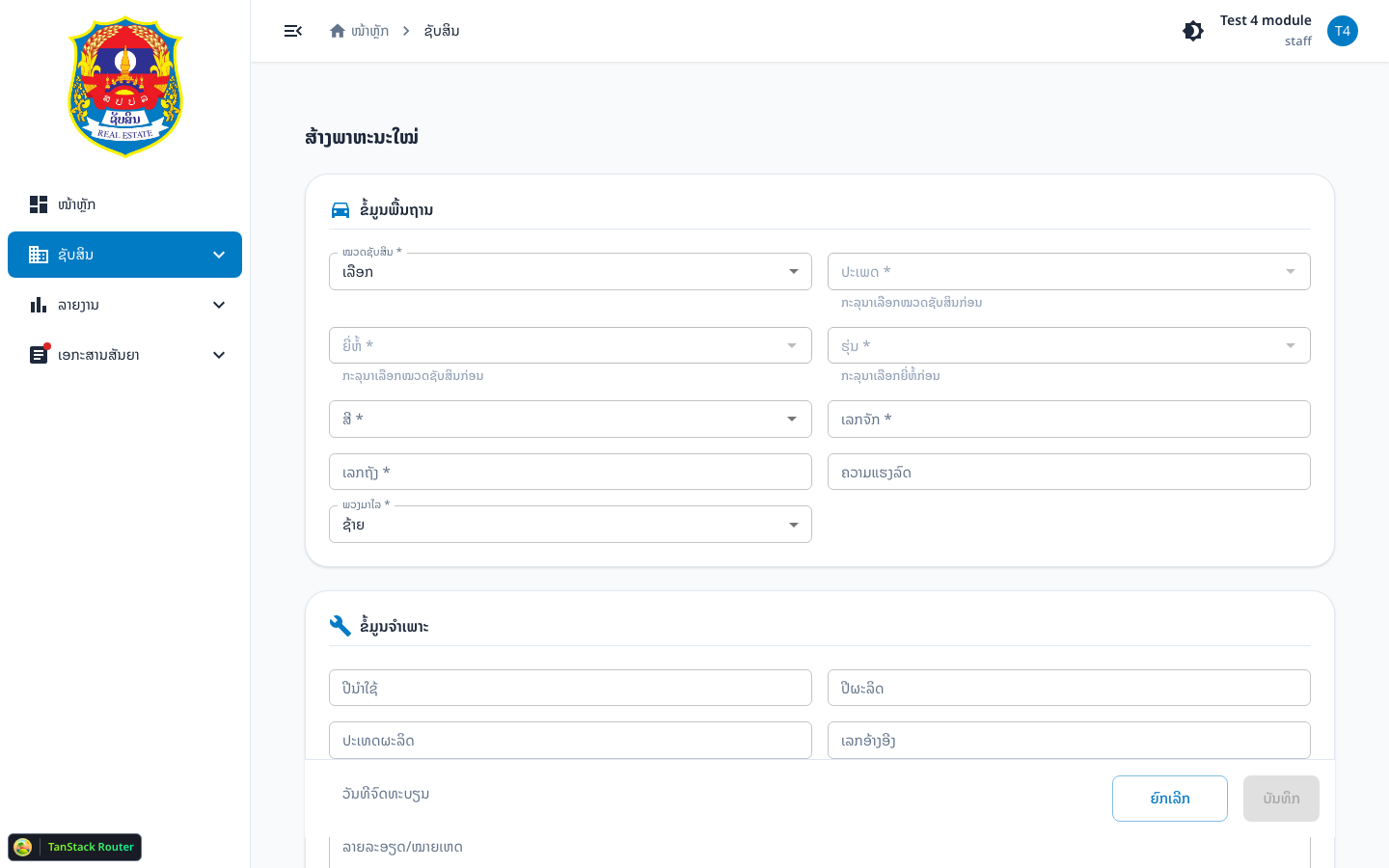
| Field | Required | Notes |
|---|---|---|
asset_type_id | Yes | Select first — resets category/brand/model |
category_id | Yes | Depends on asset type |
brand_id | Yes | Depends on asset type |
model_id | Yes | Depends on brand |
color_id | Yes | — |
registration_number | Yes | 3–50 chars; uniqueness checked via API |
tank_number | Yes | 3–50 chars; uniqueness checked via API |
strength | No | Max 20 chars |
steering_wheel | Yes | left or right |
Section 2 — Specifications
| Field | Notes |
|---|---|
year_using | 4 digits (e.g. 2024) |
year_manufactured | 4 digits |
country_of_manufacture | Country of manufacture |
reference_no | Reference number |
date | Registration date |
detail | Additional detail |
Section 3 — Organization

Uses OrganizerForm with:
level—CENTER/PROVINCE/DISTRICTministry_id,maindepart_id,depart_idprovince_id,district_id
Required/visible fields depend on permissions and the selected level.
Section 4 — Financial
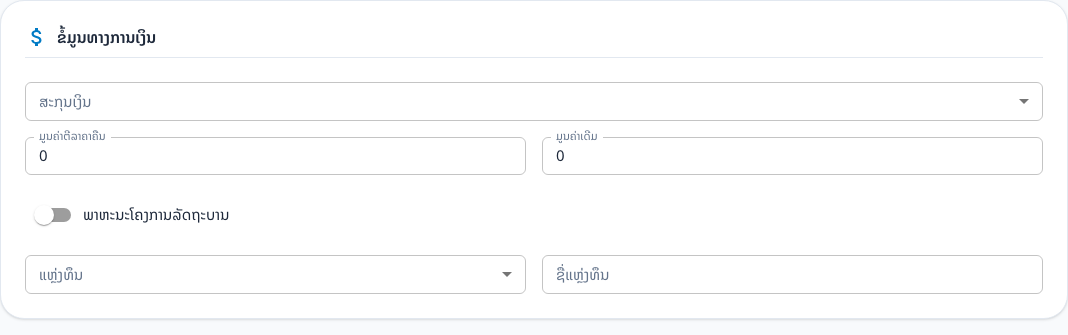
| Field | Notes |
|---|---|
currency_code | LAK / USD / THB |
cost | Cost (≥ 0) |
introductory_price | Introductory price (≥ 0) |
vehicle_kind | Switch: off = government, on = government_project |
When government
- Shows
funding_source(legacy funding-source dropdown) - Shows
funding_source_name(optional)
When government_project
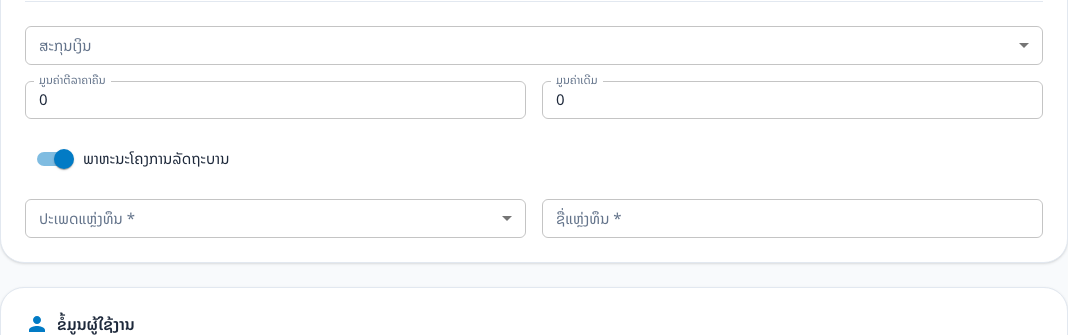
- Requires
funding_source_type_id - Requires
funding_source_name - Clears
funding_source
Section 5 — User assignment
| Field | Notes |
|---|---|
user_using_type | person or using_type |
user_using_name | Person name or government usage type |
user_using_position | Position (free text) |
position | MINISTER / VICE_MINISTER / GOVERNOR / VICE_GOVERNOR |
When user_using_type = using_type, choose one of:
- Administrative vehicle (
ລົດບໍລິຫານ) - Specialized vehicle (
ລົດວິຊາສະເພາະຈຳເພາະ) - Leadership vehicle (
ລົດການນຳລະດັບສູງ)
Section 6 — Plate registration
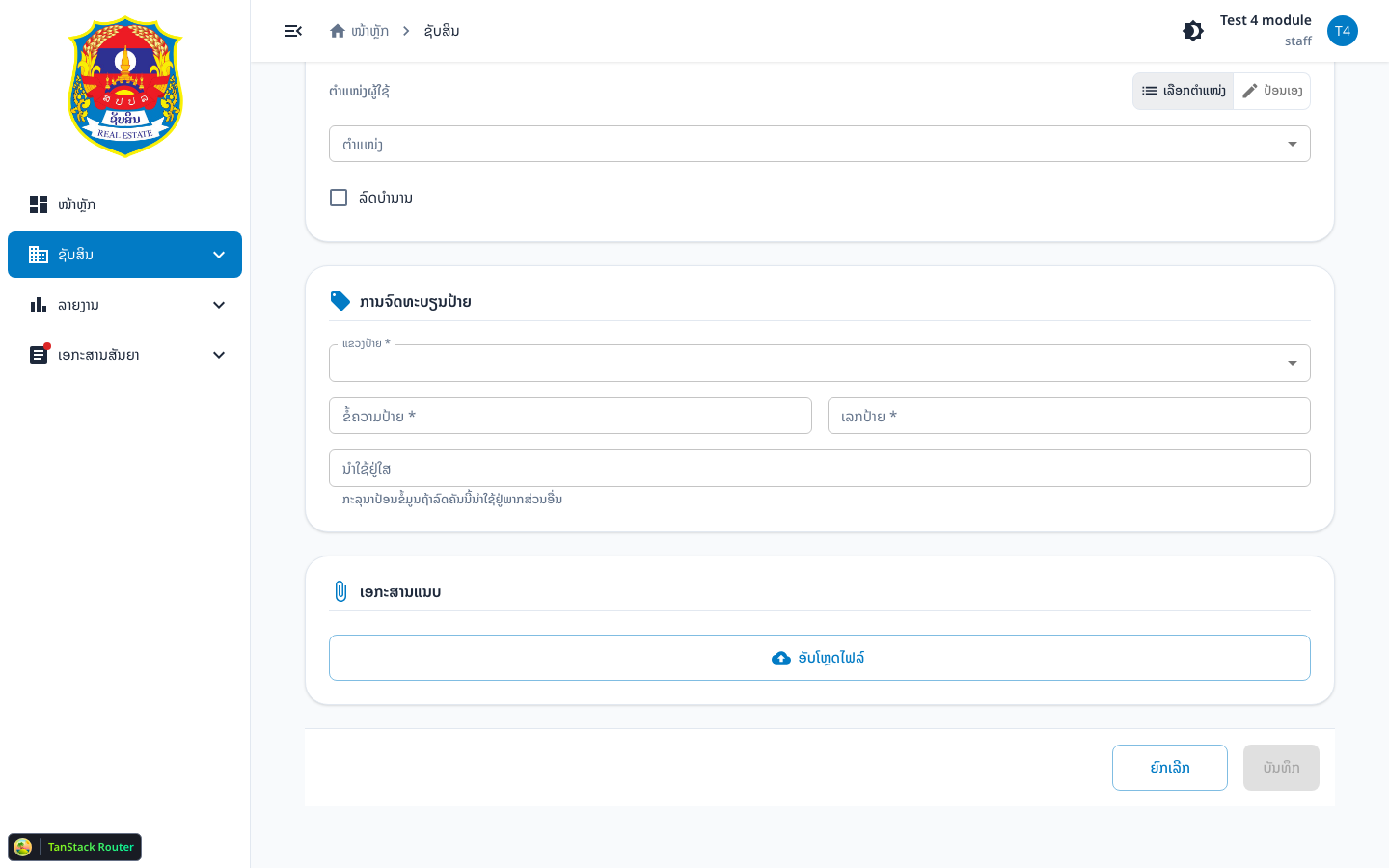
| Field | Required | Notes |
|---|---|---|
plate_province_id | Yes | Selecting a province sets plate_address automatically |
plate_text | Yes | Max 2 characters |
plate_no | Yes | Max 4 characters |
plate_used_at | No | Where the plate is used |
The system checks the combination (plate_text + plate_no + plate_province_id) for uniqueness. If taken, an error is shown and save is blocked.
Section 7 — Attachments
file_url/file_s3_key— upload a reference document to S3- Gallery images are managed on the detail page (not on the create form)
Verify it worked
Create:
- Success message appears
- A new
codeexists - You can open the detail page
Edit:
- Detail page shows the saved values
- If you changed the plate — confirm it is not duplicated on another vehicle
Common problems
| Symptom | Cause | Fix |
|---|---|---|
| Cannot save — registration taken | Duplicate registration_number | Use a different number |
| Cannot save — plate taken | Duplicate plate | Change plate_text / plate_no / province |
| Funding source type not shown | Still government | Turn on the government_project switch |
| Organization fields missing | Permission / level limits | Check the account accessScope |