Movement permits
Permission needed: View. Creating needs Add. Editing, submitting, departing, recording arrival and completing need Edit. Approving, rejecting and cancelling need Approve. Deleting needs Delete. See Permissions.
A movement permit tracks the transport of minerals from origin to destination, with vehicle and driver. It is linked to a Sales Permit and usually to a paid Resource fee notice.
When the payment of a fee notice becomes Completed, the system creates a movement permit automatically in the Submitted status. An officer must open it and fill in the route, vehicle plate, driver name and departure time before an approver can approve it.
Open the list
Click Mineral Sales in the left menu, then click Movement permits.
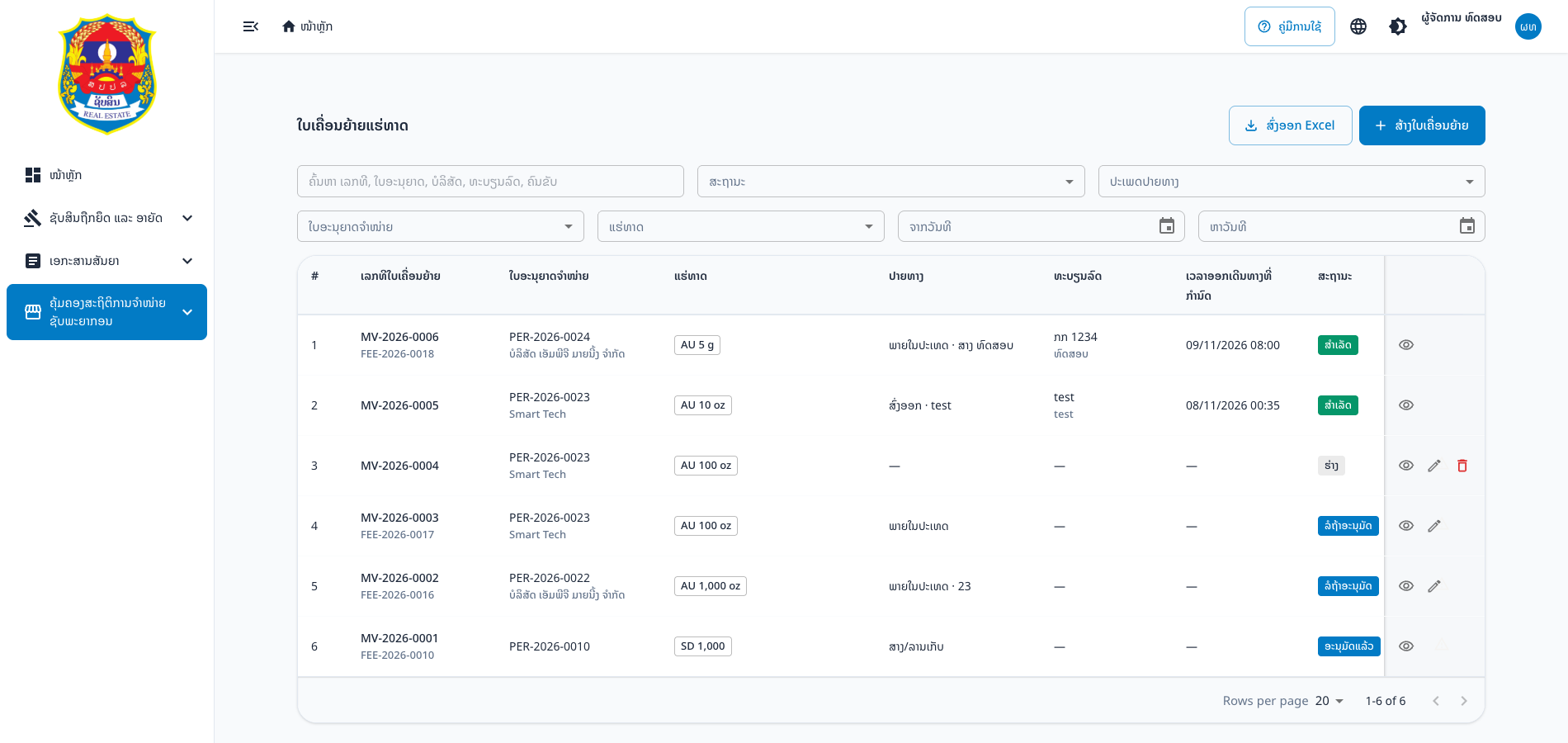
The table shows movement no., permit, mineral, destination, vehicle plate, planned departure and status. Filter by Status, Destination type, Sales permit, Mineral and the From date – To date range. Export Excel saves the list as a file.
Movement statuses
| Status | Meaning |
|---|---|
| Draft | Still being written; can be edited and deleted |
| Submitted | Sent, waiting for an approver |
| Approved | Ready to depart |
| In transit | The mineral has left the origin |
| Completed | Closed |
| Rejected, Cancelled | Not continued |
Create a movement permit
Click New movement permit at the top right.
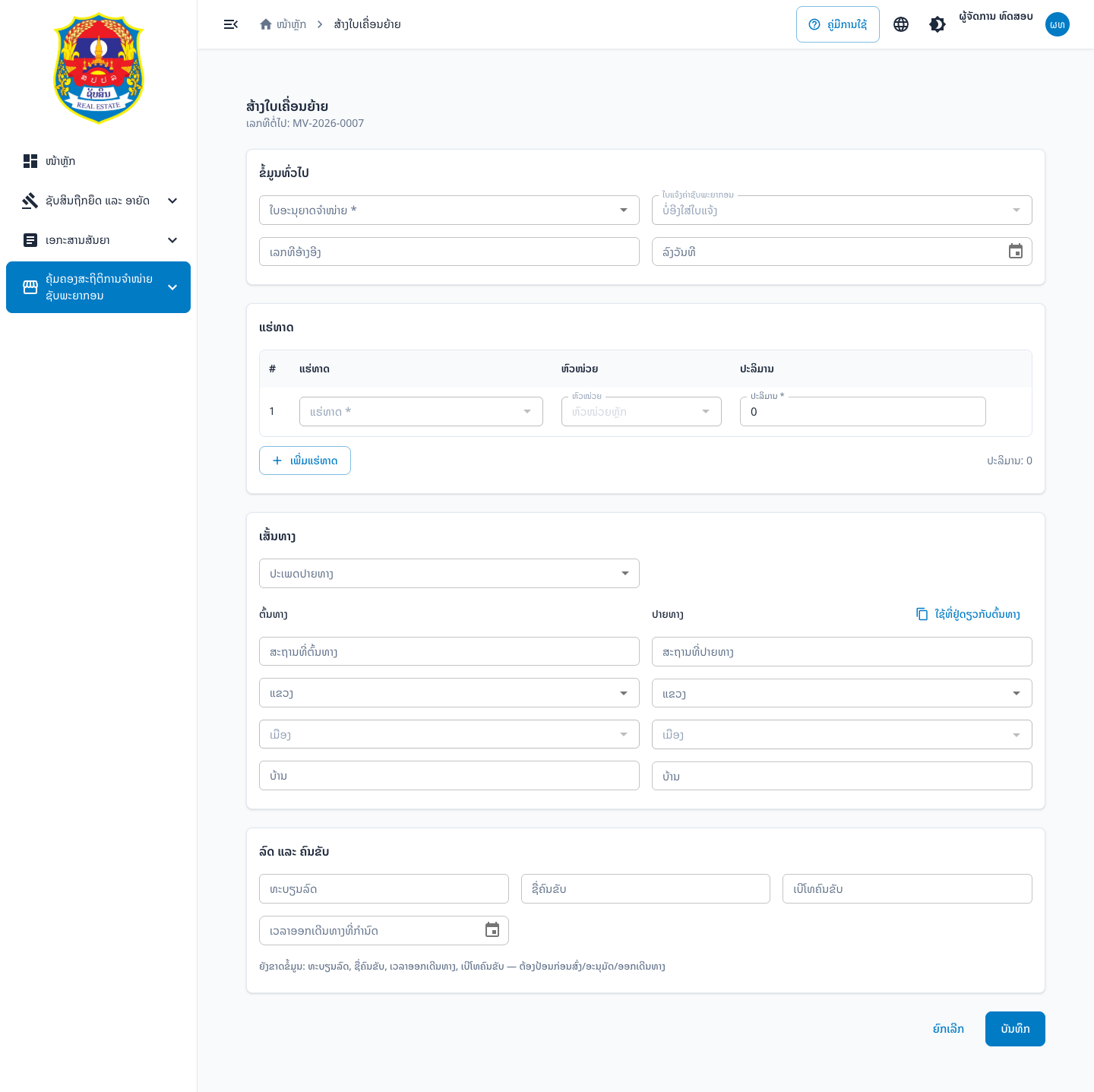
- General: choose the Sales permit (required) and the related Fee notice. Add a reference no. and date if you have them.
- Minerals: choose the mineral, unit and type the Quantity (required). Click Add mineral for more.
- Route: choose the Destination type (Stockyard, Export or Domestic) and enter origin and destination (place, province, district, village). Same as origin copies the origin address to the destination.
- Vehicle and driver: vehicle plate, driver name, driver phone and planned departure time.
- Click Save.
The small text under Vehicle and driver says what is still missing. This data must be complete before you submit, approve or depart.
View details
Click the eye icon at the end of a row.
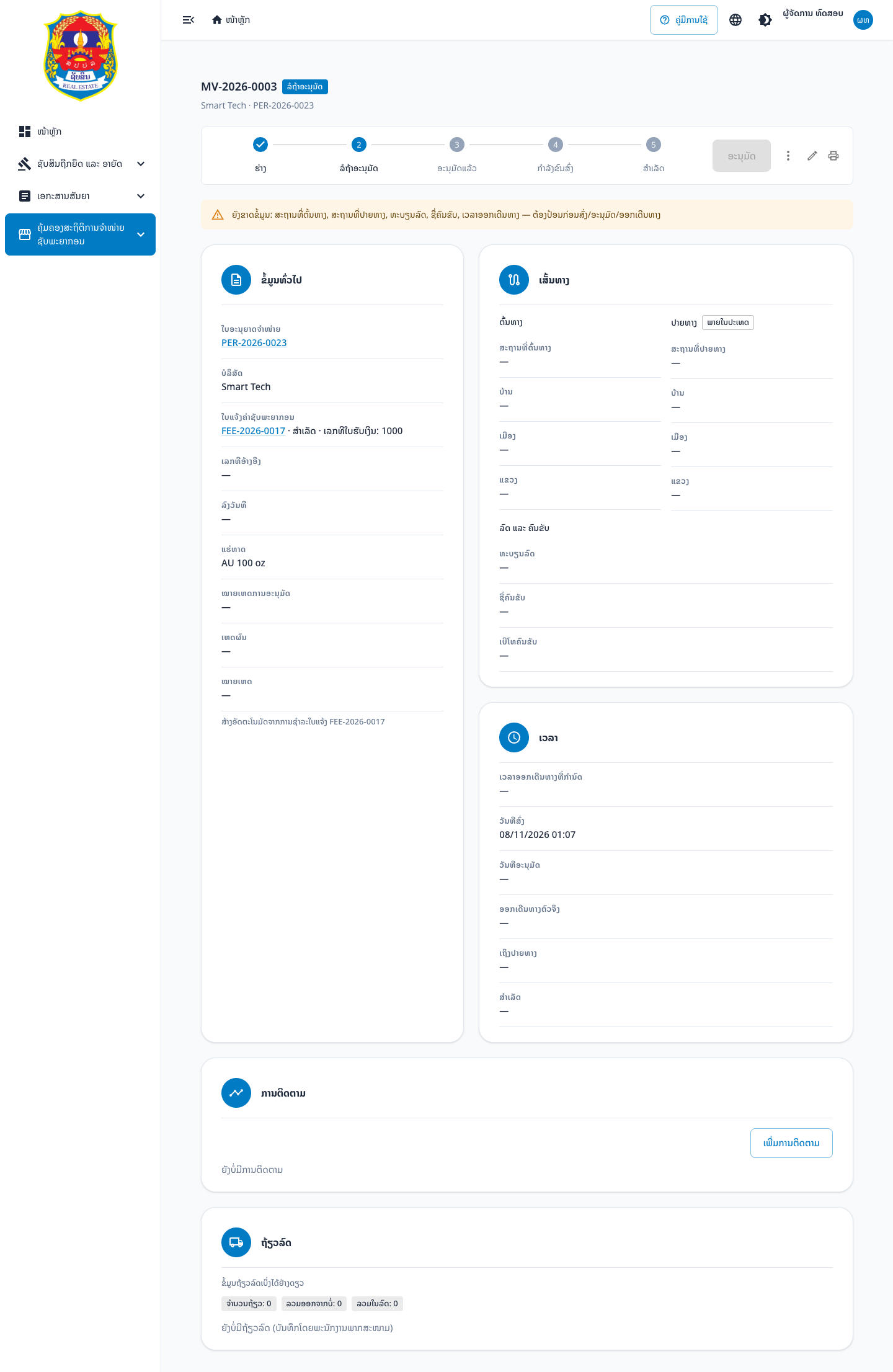
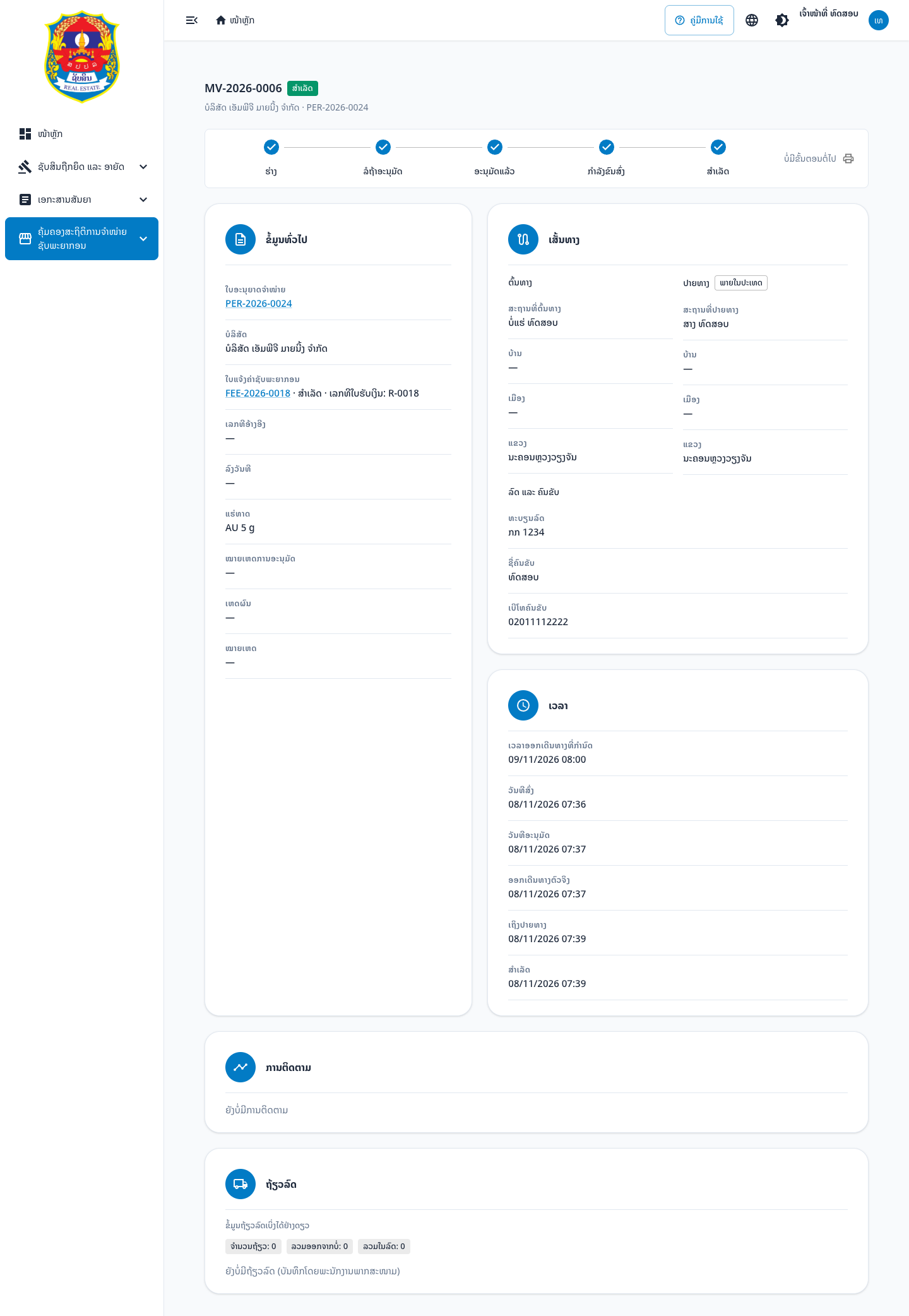
- The top bar shows the steps: Draft → Submitted → Approved → In transit → Completed.
- A yellow bar lists missing data.
- General, Route, Vehicle and driver and Timeline (submitted, approved, actual departure, arrival, completed).
- Tracking records positions along the way.
- Trips shows the number of trips recorded by field staff (view only).
Steps of a movement permit
The next-step button changes with the status:
| Status | Next-step button | In the ⋮ menu |
|---|---|---|
| Draft | Submit | Cancel |
| Submitted | Approve | Reject, Cancel |
| Approved | Depart | Cancel |
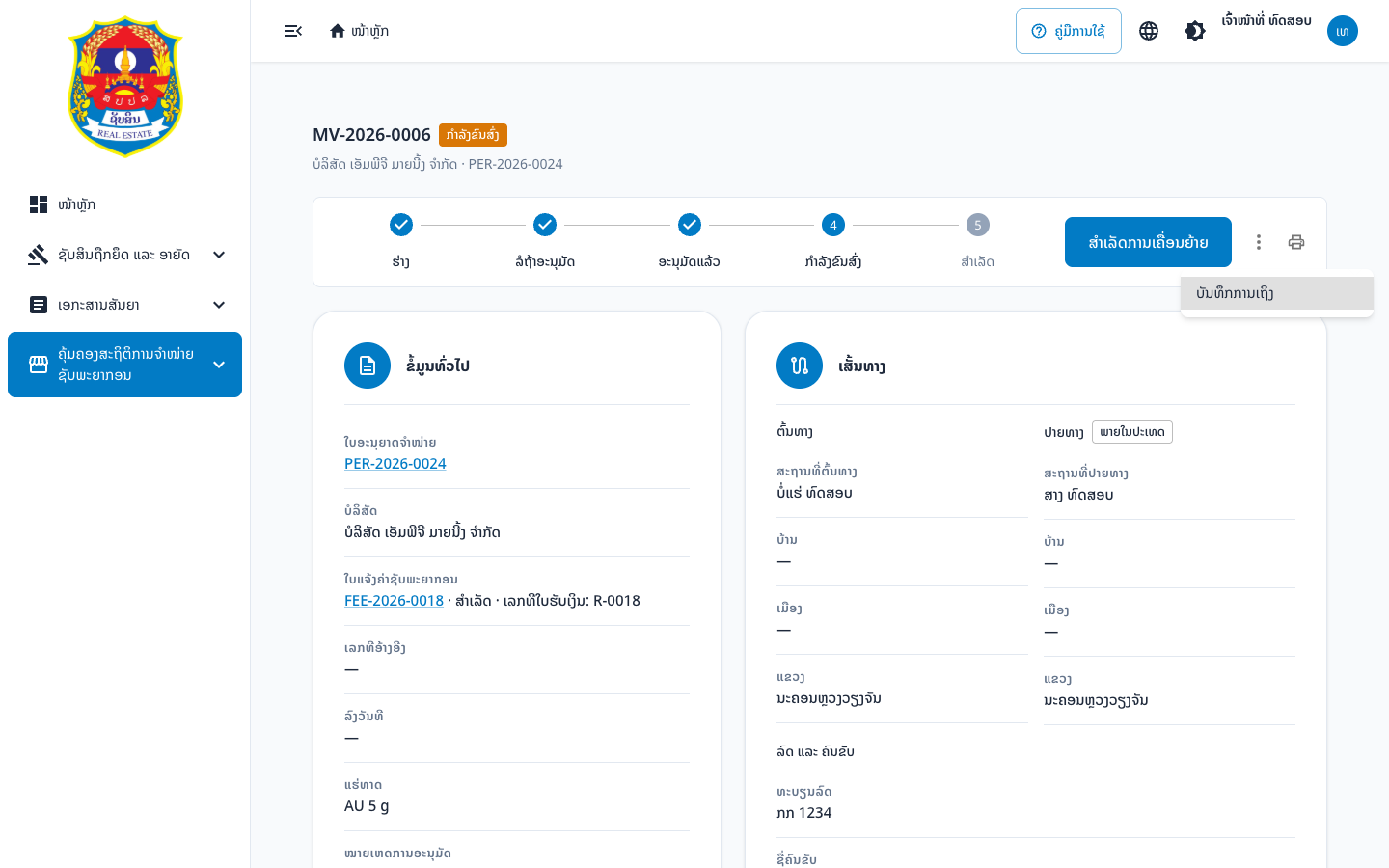
| In transit | Complete | Record arrival, Cancel |
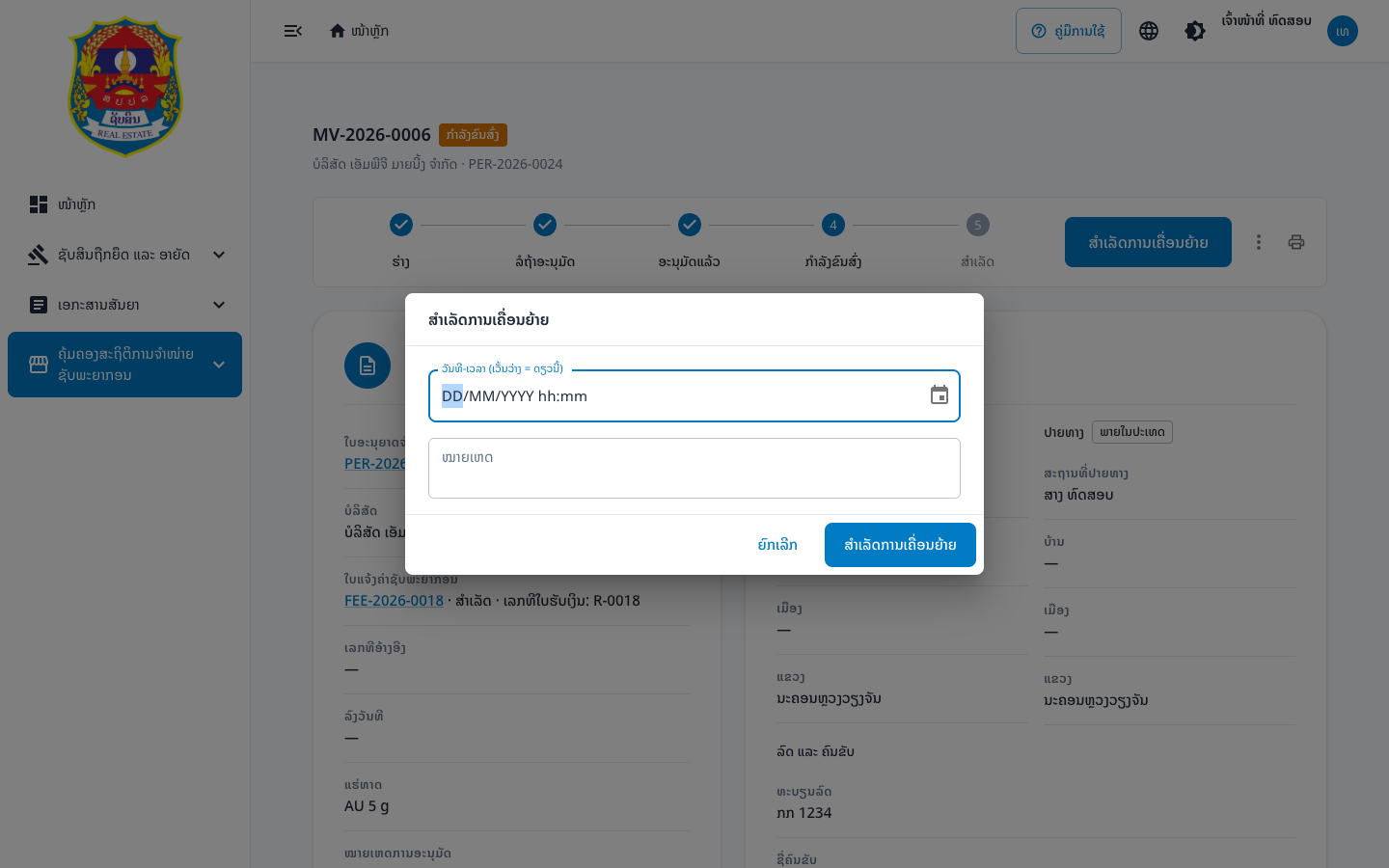
Every step opens a confirmation window:
- Approve has an optional Approval note.
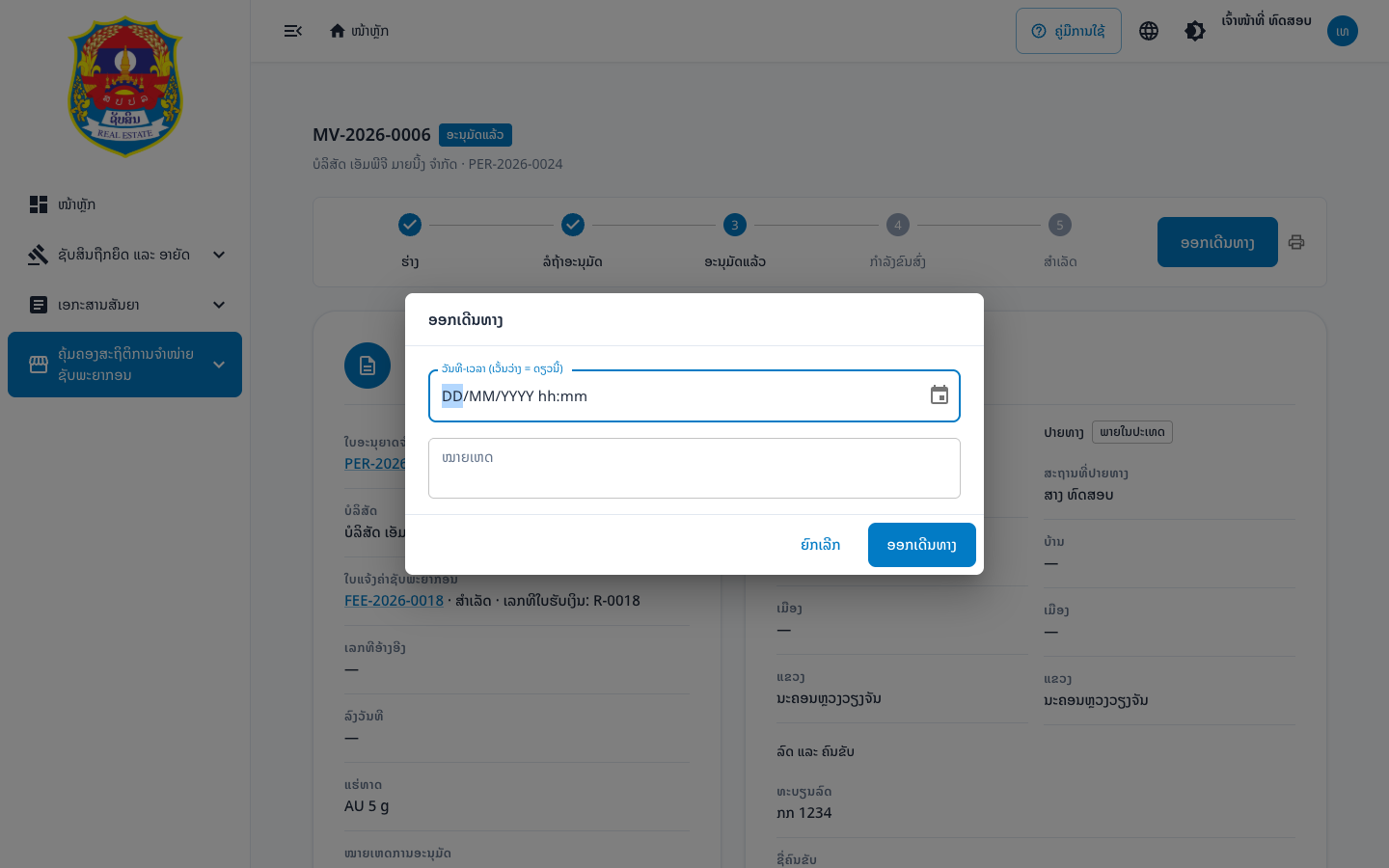
- Depart lets you choose the Date-time; if left empty the system uses now. It also has a Note.
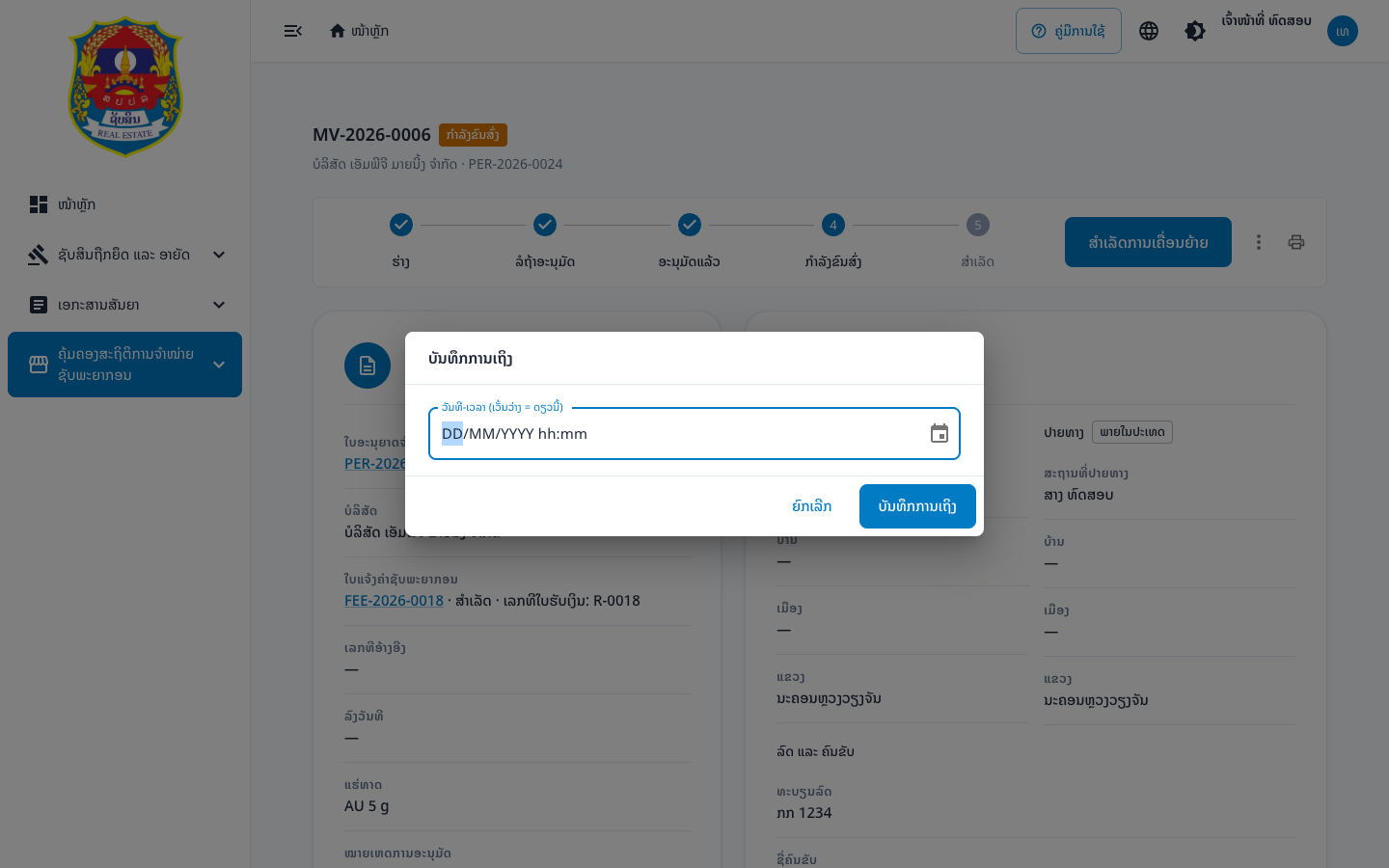
- Record arrival records when the vehicle reached the destination (date-time, empty = now). It does not change the status and can be skipped.
- Complete takes a Date-time (empty = now) and a note, and then the permit is closed.
An account with only the Approve permission can approve, but cannot depart. An officer with the Edit permission continues. The approver sees a note that the next step is waiting.
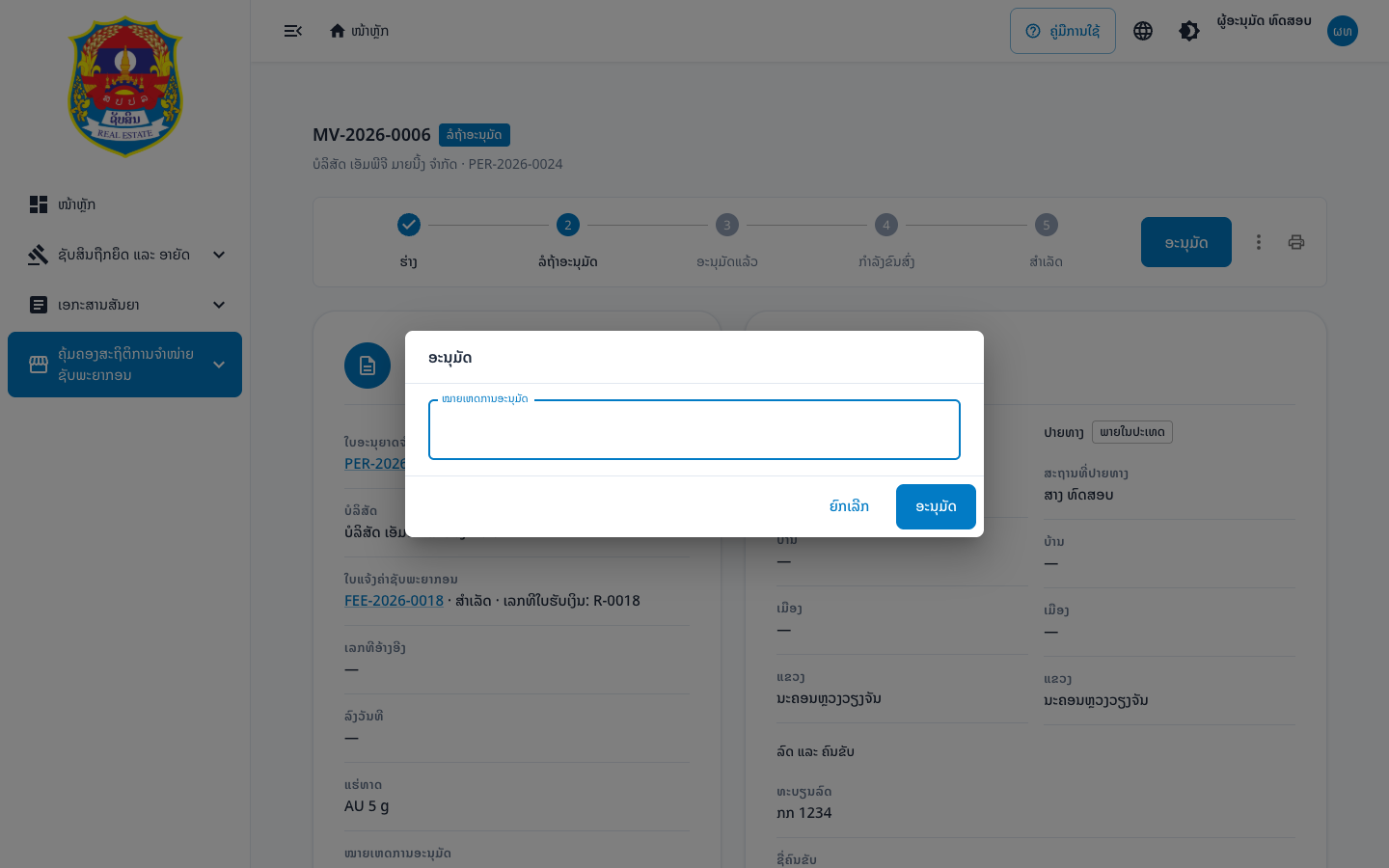
Reject and Cancel need a reason of at least 10 characters.
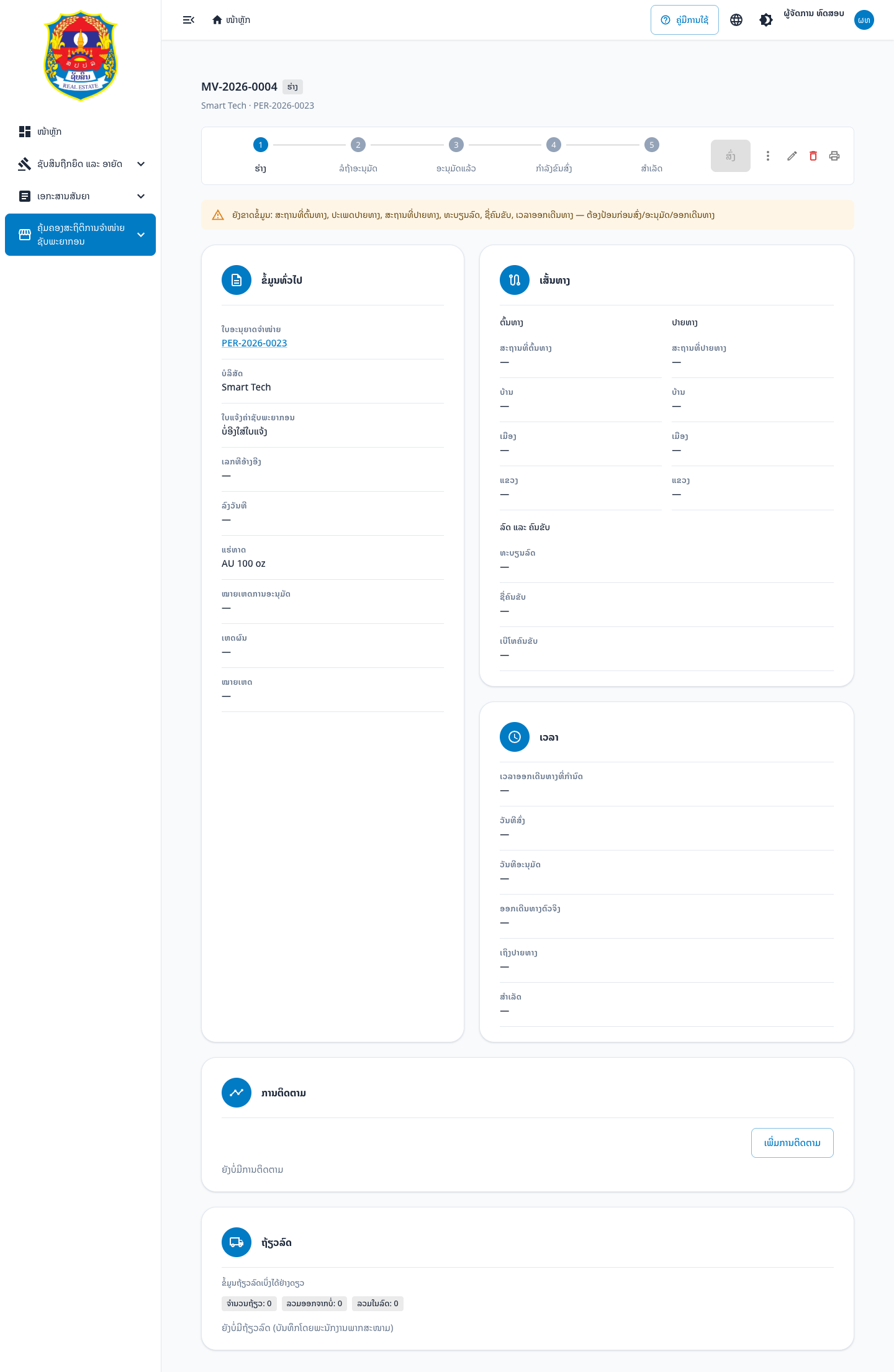
This is a Draft movement: it has Submit, Edit, Delete, Print certificate and Add tracking buttons.
If the next-step button is grey, hover over it to see why. Reasons you may see: the route, vehicle, driver or departure time is missing (the yellow bar says what), or the permit is not Active or has expired.
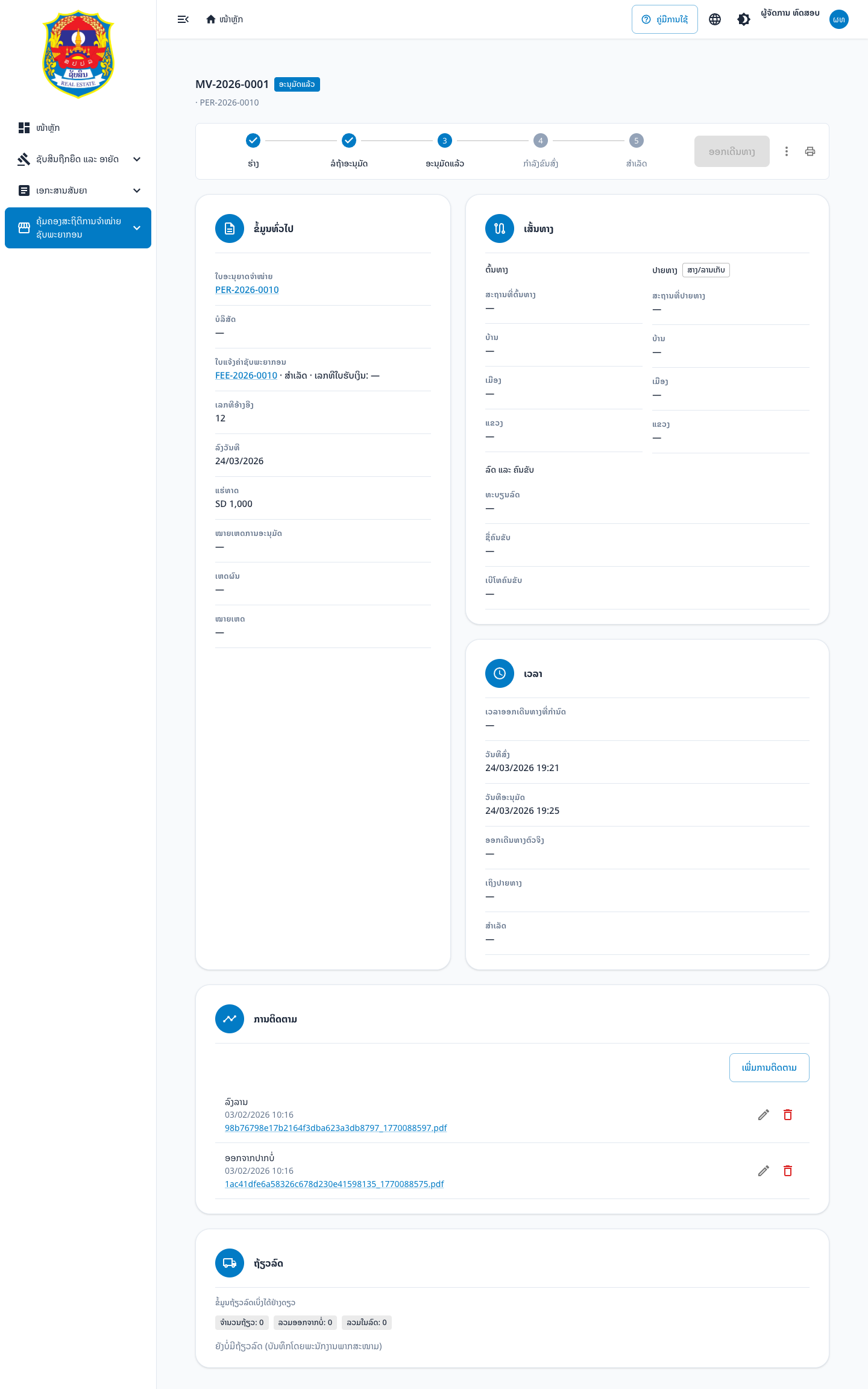
Tracking
Click Add tracking to record a position or note about the vehicle on the way. Each entry can be edited or deleted.
Print the certificate
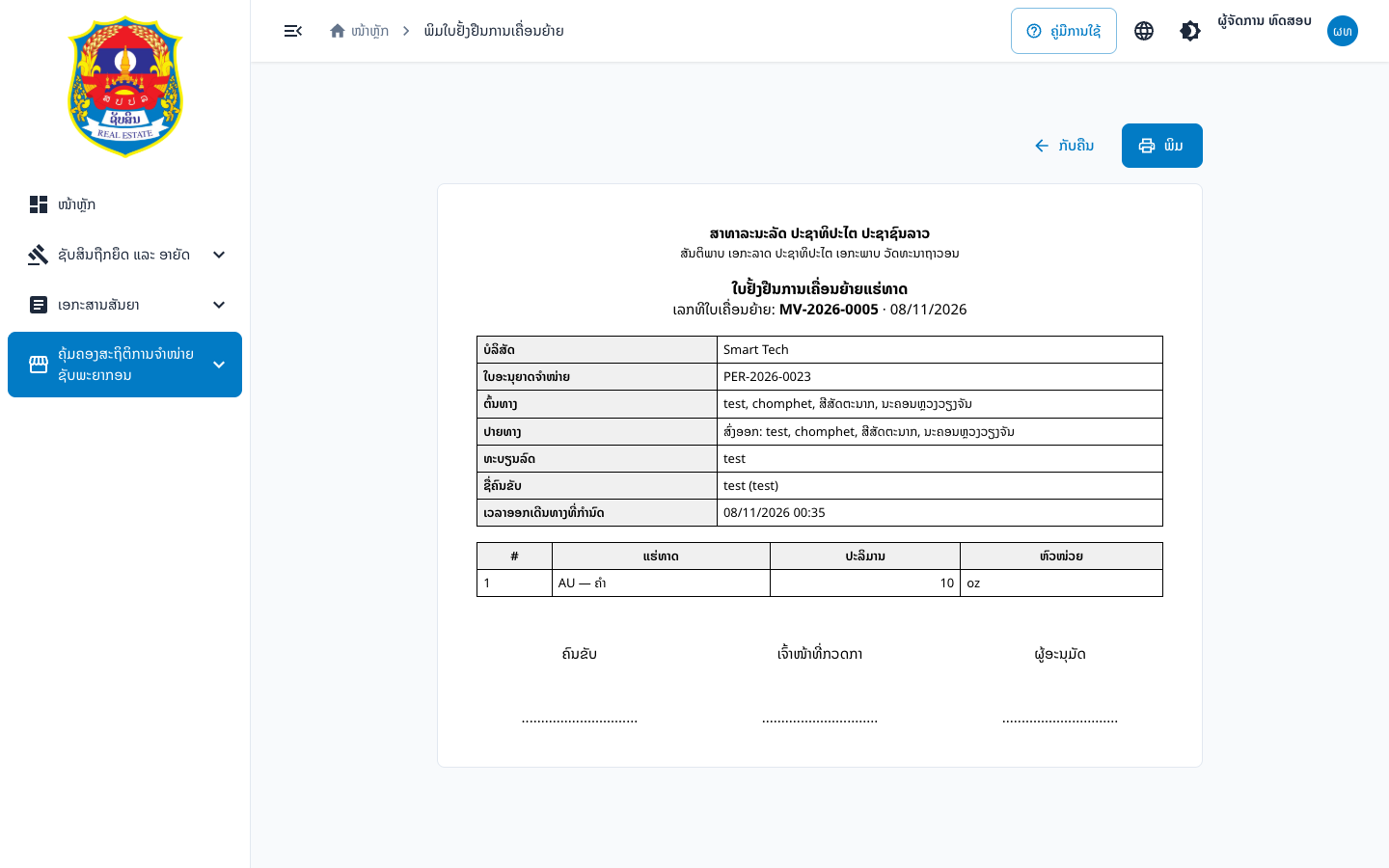
Click Print certificate to print the movement certificate with signature boxes for the transporter, the inspecting officer and the approver.
A Completed movement can only be viewed and printed.