Sales Permits
Permission needed: View. Adding and editing need Add and Edit. Approving and changing status need Approve. See Permissions.
A sales permit allows a company to sell minerals under its plan, between set dates and up to a set quantity. A permit must be linked to an Annual Plan that is Active.
Open the list
Click Mineral Sales in the left menu, then click Sales Permits.
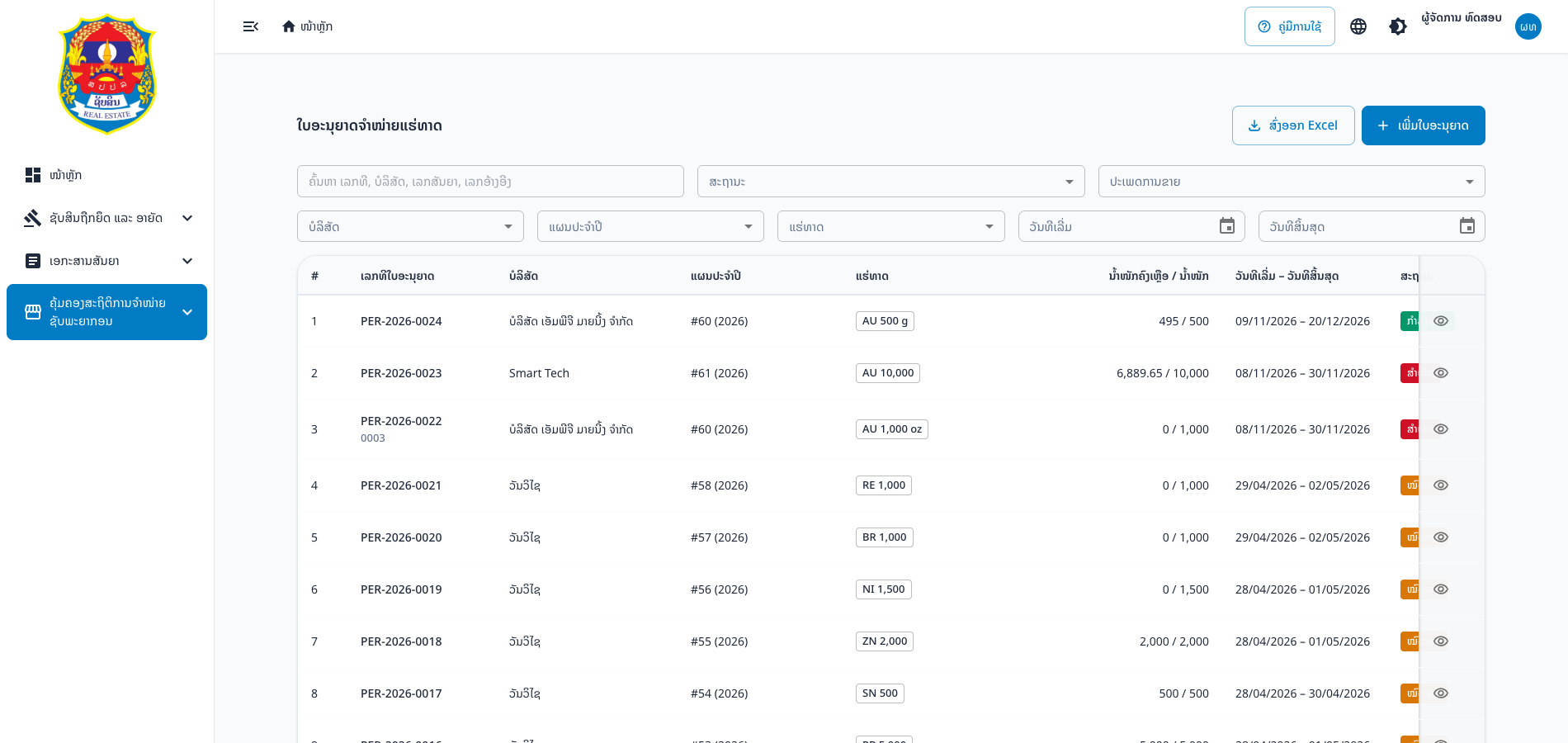
The table shows permit no., company, annual plan, mineral, remaining weight / weight, start – end dates, status and sale type (domestic or export).
Search by number, company, contract no. or reference no.; filter by Status, Sale type, Company, Annual plan, Mineral and the Start date / End date range. Export Excel saves the list as a file.
Permit statuses
| Status | Meaning |
|---|---|
| Draft | Still being written |
| Submitted | Sent, waiting for an approver |
| Approved | Approved, waiting to be activated |
| Active | In use; fee notices and movement permits can be issued |
| Completed | Fully sold or closed |
| Expired | Past its end date |
| Suspended | Paused for now |
| Rejected, Cancelled | Not continued |
Issue a permit
Two ways:
- Open an Active plan and click Issue permit (the company and plan are filled in).
- Click Add permit at the top right of the list and choose the plan yourself.
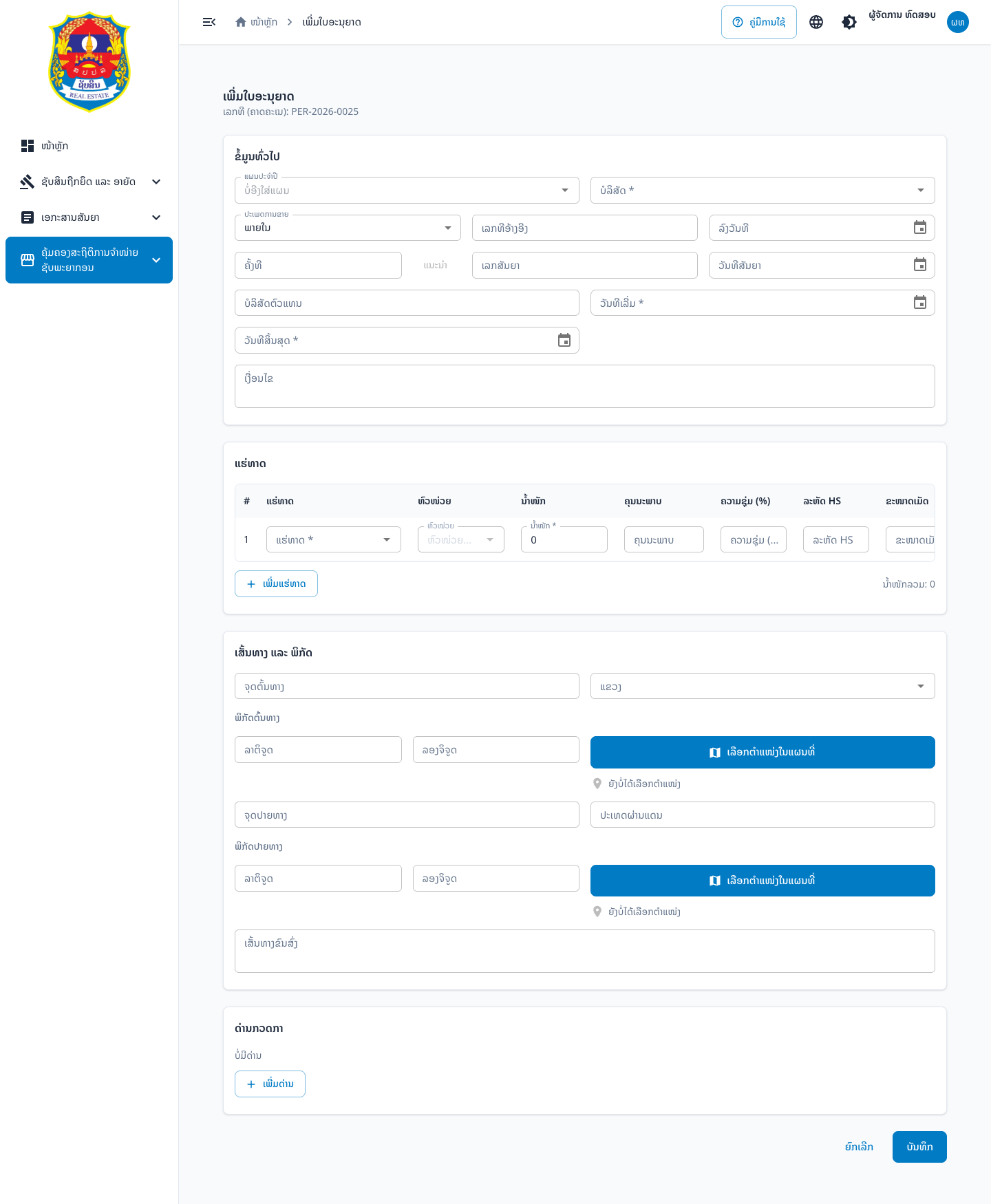
The permit number is given by the system. In Annual plan you can only choose Active plans. Fill in the sections:
- General: annual plan, Company (required), sale type, reference no., date, issue no., contract no., contract date, agent company, Start date and End date (required), conditions.
- Minerals: choose the mineral, unit and Weight (required), plus quality, moisture, HS code, grain size. Click Add mineral for more.
- Route and coordinates: origin, destination, transport route and checkpoints. You can pick a position on the map.
Click Save and the permit is created.
The permit dates should be inside the plan's dates and the weight should not exceed the plan quantity.
View details
Click the eye icon at the end of a row.
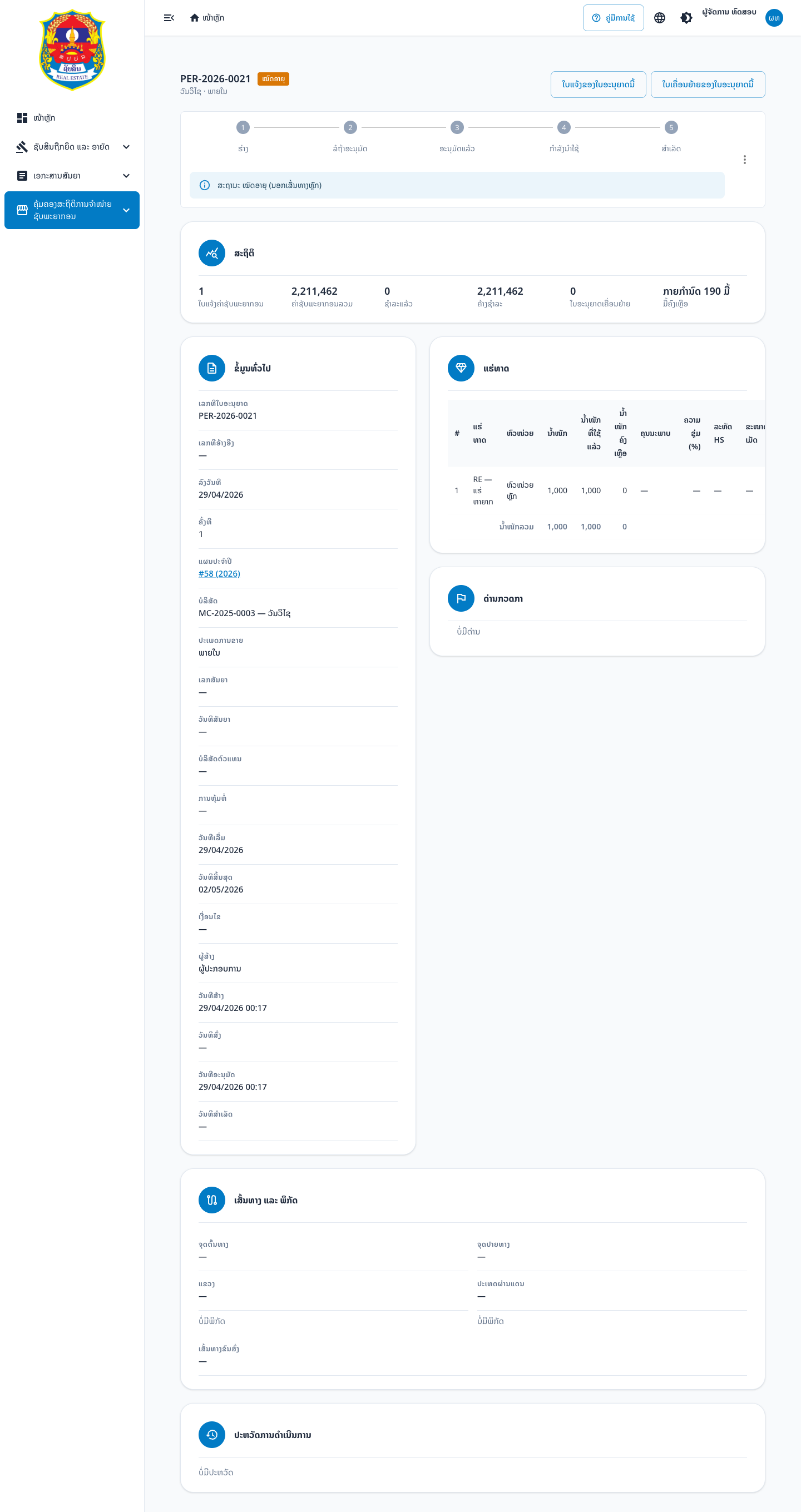
The page has:
- The step bar Draft → Submitted → Approved → Active → Completed. Expired and Suspended are outside the main path and a note says so.
- Statistics: number of fee notices, total resource fees, paid, outstanding, number of movement permits and days left before expiry.
- Minerals: total weight, used weight and remaining weight.
- Route and coordinates, Checkpoints and History.
- The buttons Fee notices of this permit and Movements of this permit at the top right.
Change status
An approver clicks ⋮ and chooses Change status. An Active permit can become Suspended, Completed or Cancelled. Choose the New status and type a Note. Suspend and Cancel need a note of at least 10 characters.
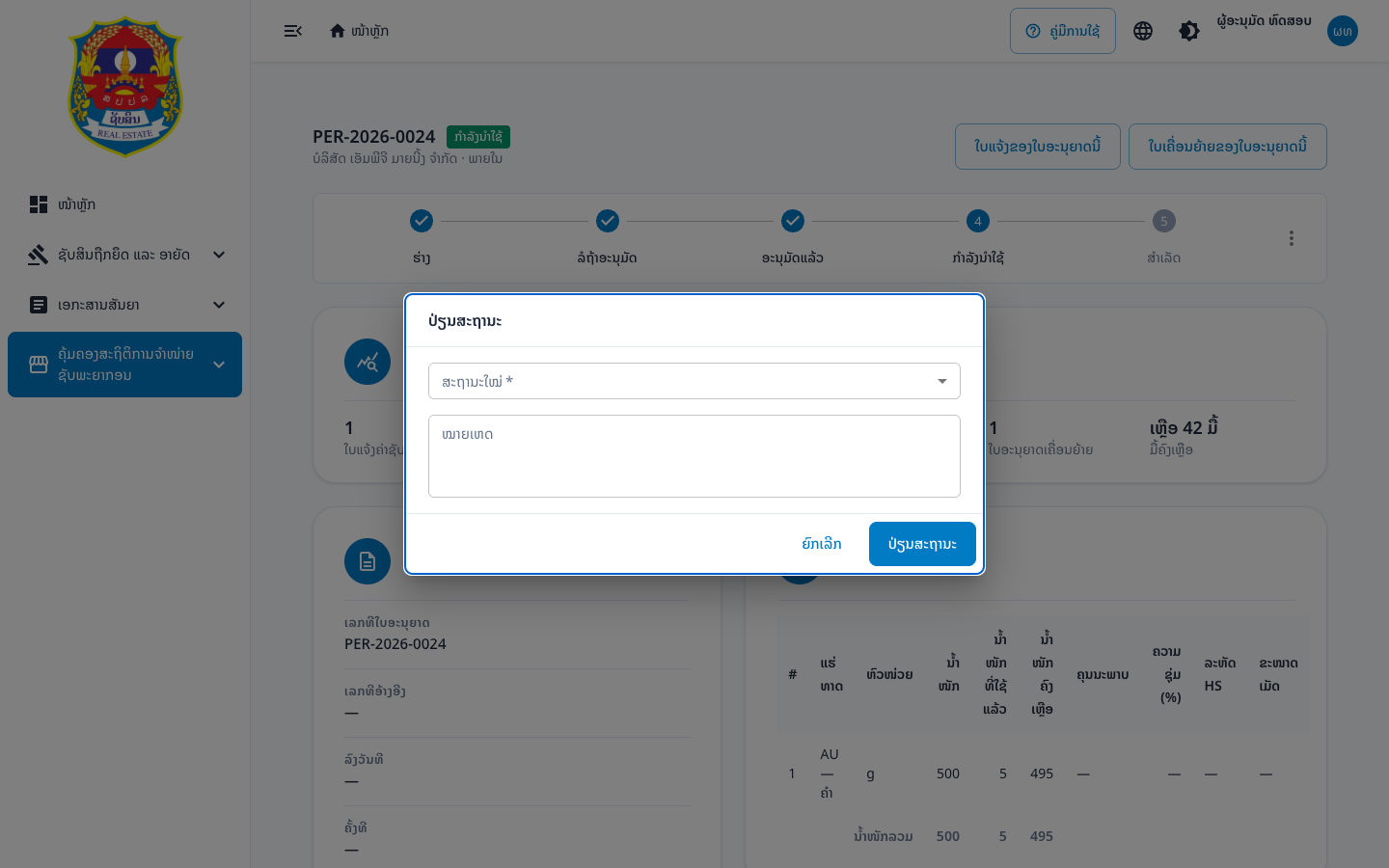
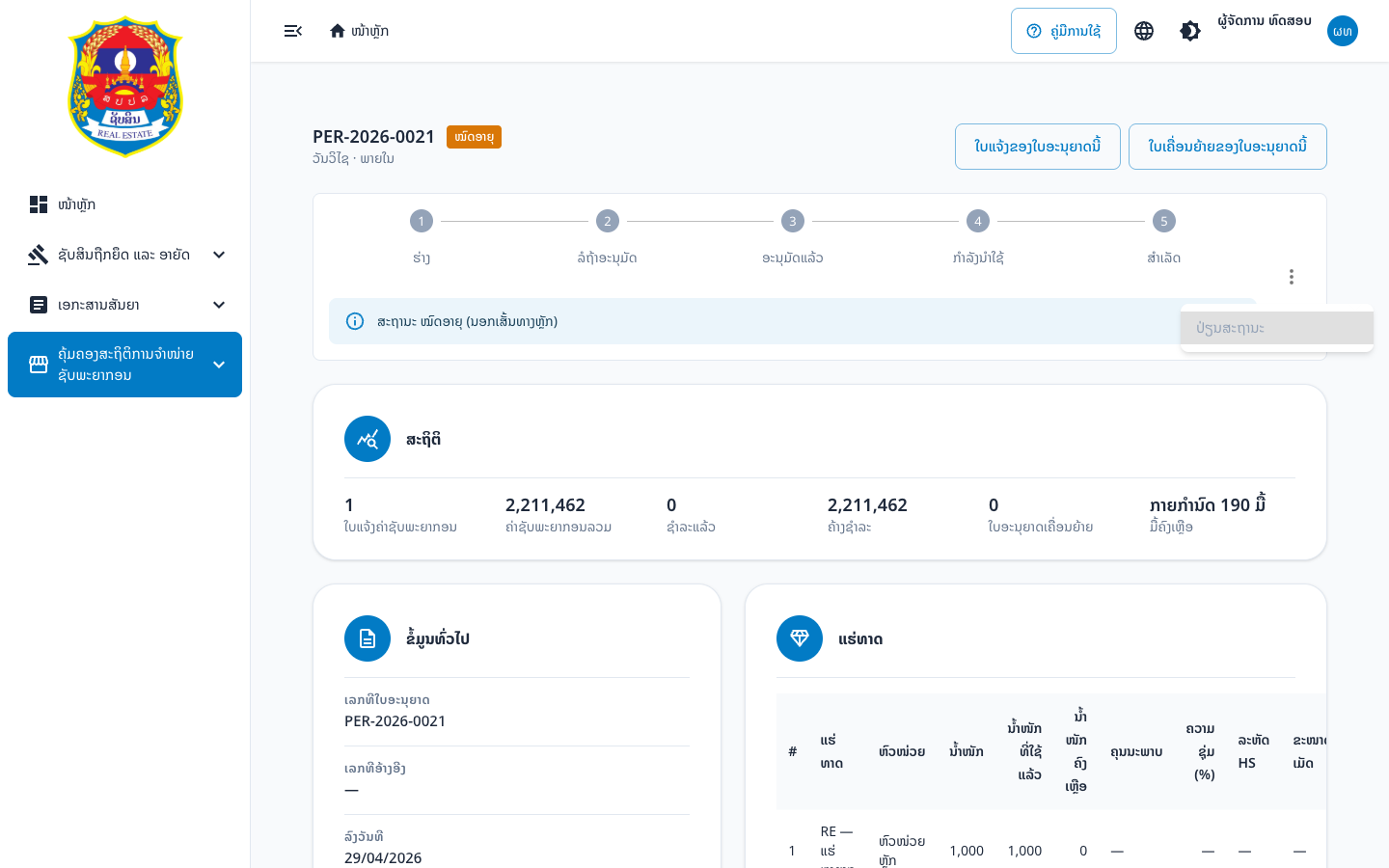
Completed and Cancelled are greyed out while the permit still has unpaid fee notices or movement permits in transit. Hover over the menu to see why. A permit that is already Completed has no such menu.