Contract attached documents
Permission needed: View (to see documents) and Documents (to upload, scan, delete and stamp)
Documents are at the bottom of the Contract details page in the Documents box. A contract with the status Completed cannot get more documents.
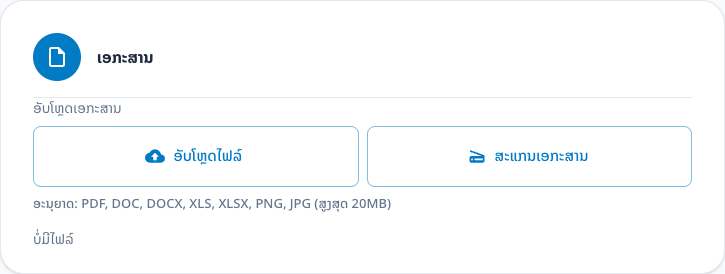
File types and size
PDF, Word (DOC, DOCX), Excel (XLS, XLSX) and pictures (PNG, JPG). Each file can be up to 20 MB.
Upload a file
- Click Upload file.
- Choose the file from your computer.
- Wait until the file appears in the list.
Scan a document
Use this when a scanner is connected to your computer and the system's scanner program is running.
- Put the document in the scanner.
- Click Scan document.
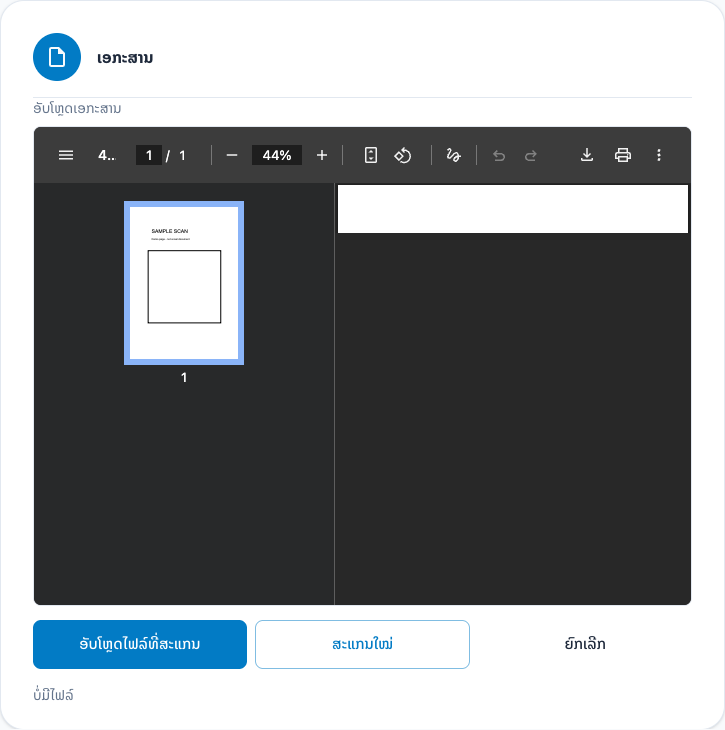
- The system shows the scanned document first and has not uploaded it yet.
- If it is not good, click Scan again. If you do not want it, click Cancel. If it is good, click Upload scanned file.
Delete a document
Click the bin icon at the end of the document row, then click Delete when the system asks you to confirm.
Stamp the registration number
This puts the contract's registration number on page 1 of a PDF. The contract must already have a registration number (approved).
- In the row of the PDF click the Stamp registration number icon.
- You see page 1 of the document and the stamp. Drag the stamp where you want it and pull a corner to resize.
- Or type the position and size in millimetres in the right-hand panel. Click Reset position to go back.
- Click Save stamp.
When done, the row shows a Stamped label.
A stamped document can be stamped again. The old stamp is replaced and the system keeps the original file. The system asks you to confirm first.
If the system says the document cannot be stamped, it is usually because:
- the file is not a PDF
- the contract has no registration number yet
- page 1 of the PDF is rotated (not supported)
The stamp picture in the system is still a trial design, not the official stamp. Check the shape and the Lao text with the officers before using it on official documents.