Annual Plans
Permission needed: View. Adding and editing need Add and Edit. Approving and activating need Approve. Deleting needs Delete. See Permissions.
An annual plan says which mineral a company will sell, how much, and in which year. A plan must be Active before a sales permit can be issued.
Open the list
Click Mineral Sales in the left menu, then click Annual Plans.
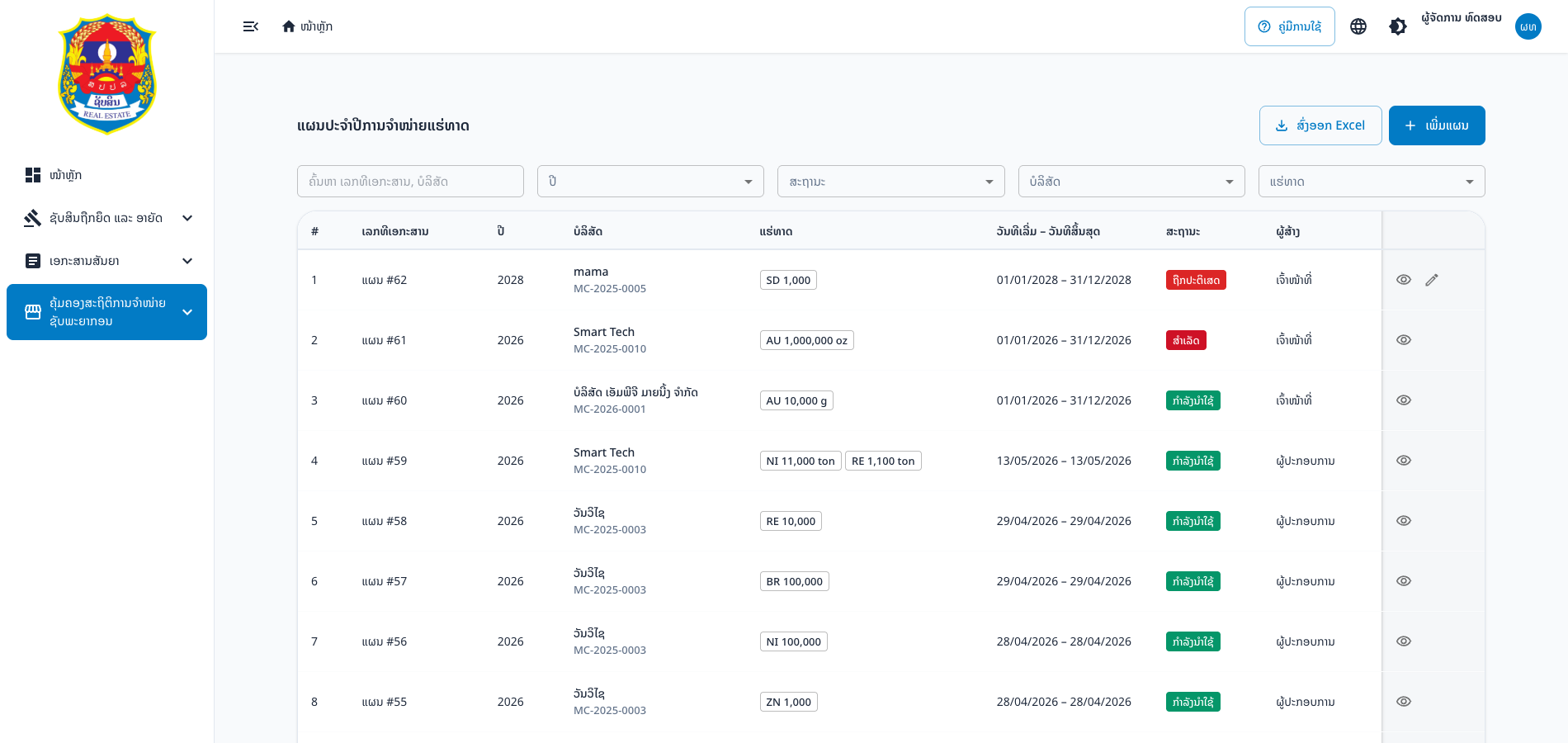
Each row is one plan: document number, year, company, minerals and quantity, validity dates, status and creator. Filters above the table: Year, Status, Company and Mineral. Export Excel saves the filtered list as a file.
Plan statuses
| Status | Meaning |
|---|---|
| Draft | Still being written; can be edited and deleted |
| Submitted | Sent, waiting for an approver |
| Approved | Approved, waiting to be activated |
| Active | In use; permits can be issued |
| Completed | Plan closed |
| Rejected | An approver rejected it; fix it and submit again |
| Cancelled | Cancelled |
Add a plan
Click Add plan at the top right. Creating a plan has 4 steps along the top. Finished steps get a tick. Next stays disabled until the required data is entered, and the red text beside it says what is missing.
Step 1: Basic information
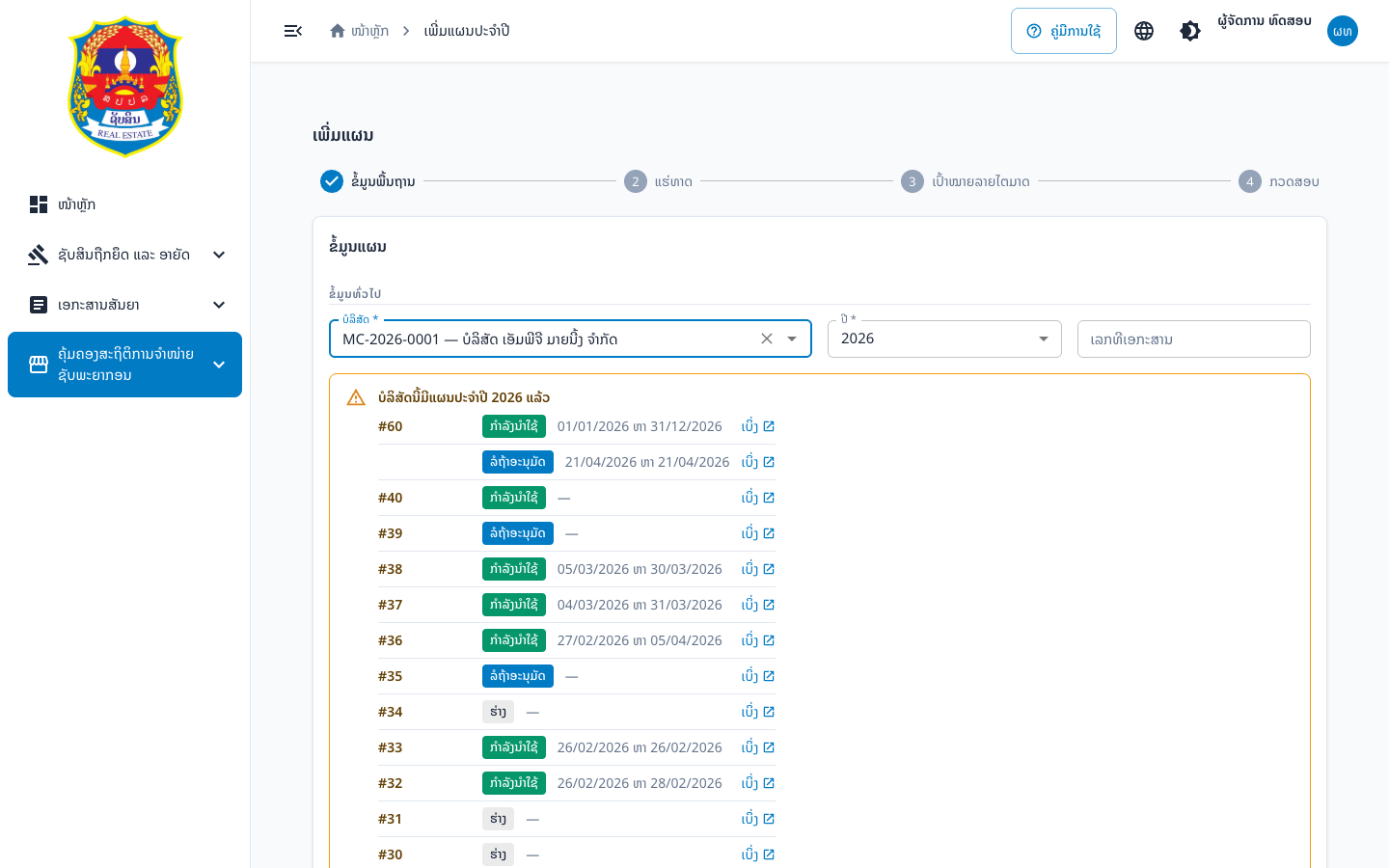
- Company: choose from the list (required).
- Year: choose from the list of years (required).
- Document no.: type it if you have one.
- Start date – End date: pick the dates. Whole year fills 1 January to 31 December of the chosen year.
- Volume targets: export and domestic targets.
- Cost, price and revenue: unit cost, target price, target revenue.
- Notes: any extra text.
After you choose a company and year, if that company already has a plan for the same year the system shows a warning with the existing plans, so you do not duplicate.
Step 2: Minerals
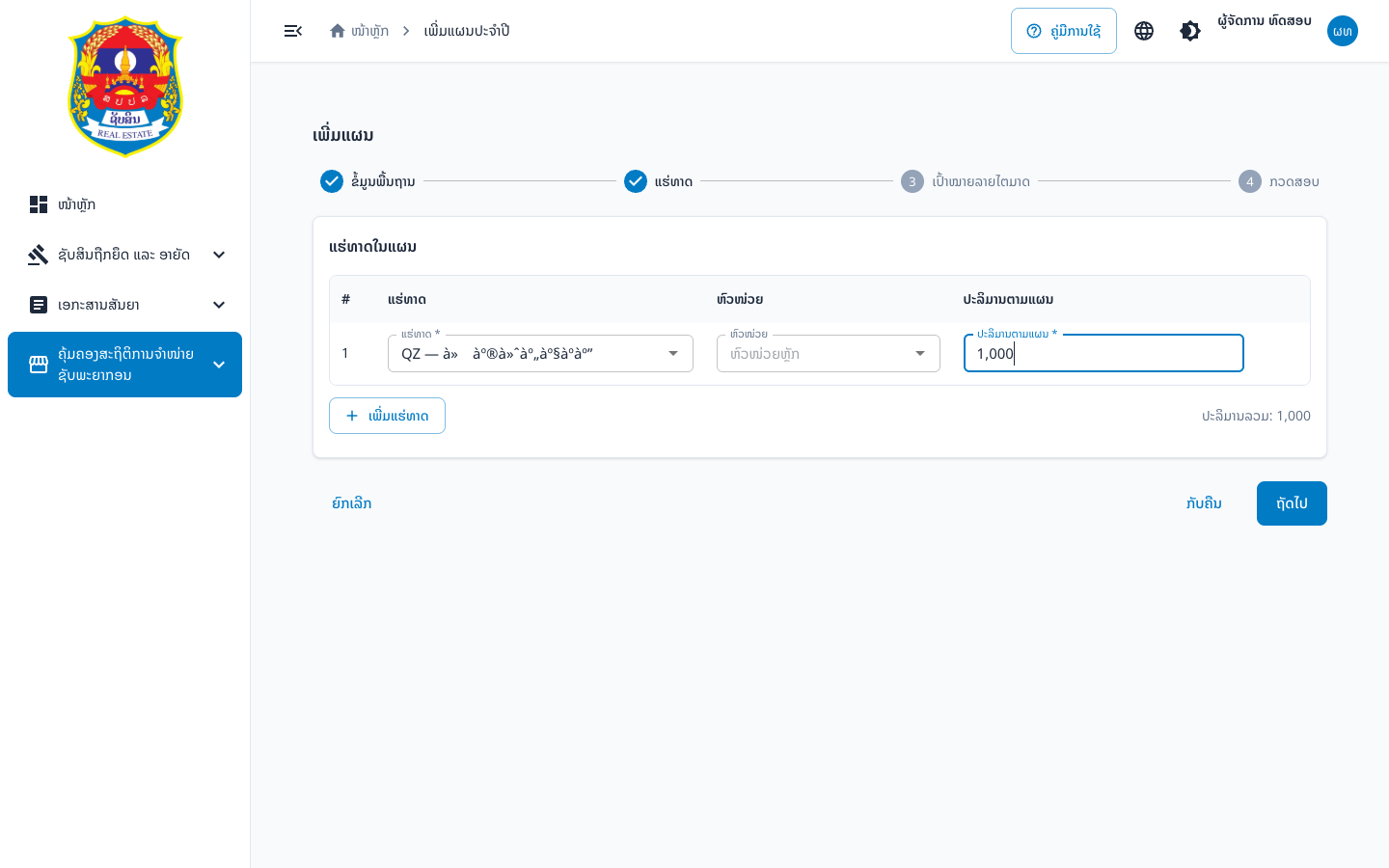
Choose the Mineral and Unit, and type the Planned quantity. Click Add mineral for more than one. The system adds up the Total planned.
Step 3: Quarter targets
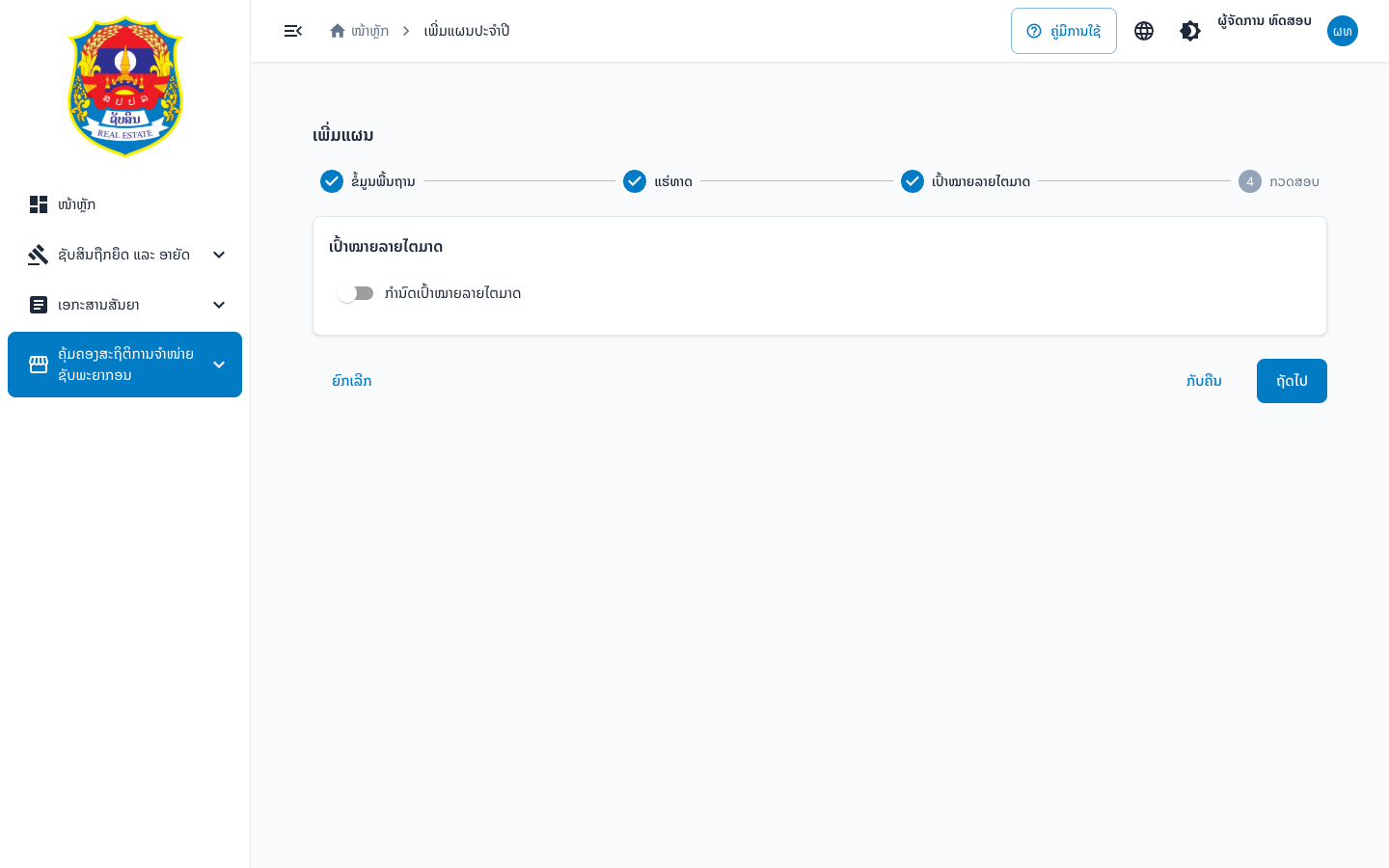
Enter the targets for each quarter (quantity, export, domestic, revenue). This step is optional.
Step 4: Review
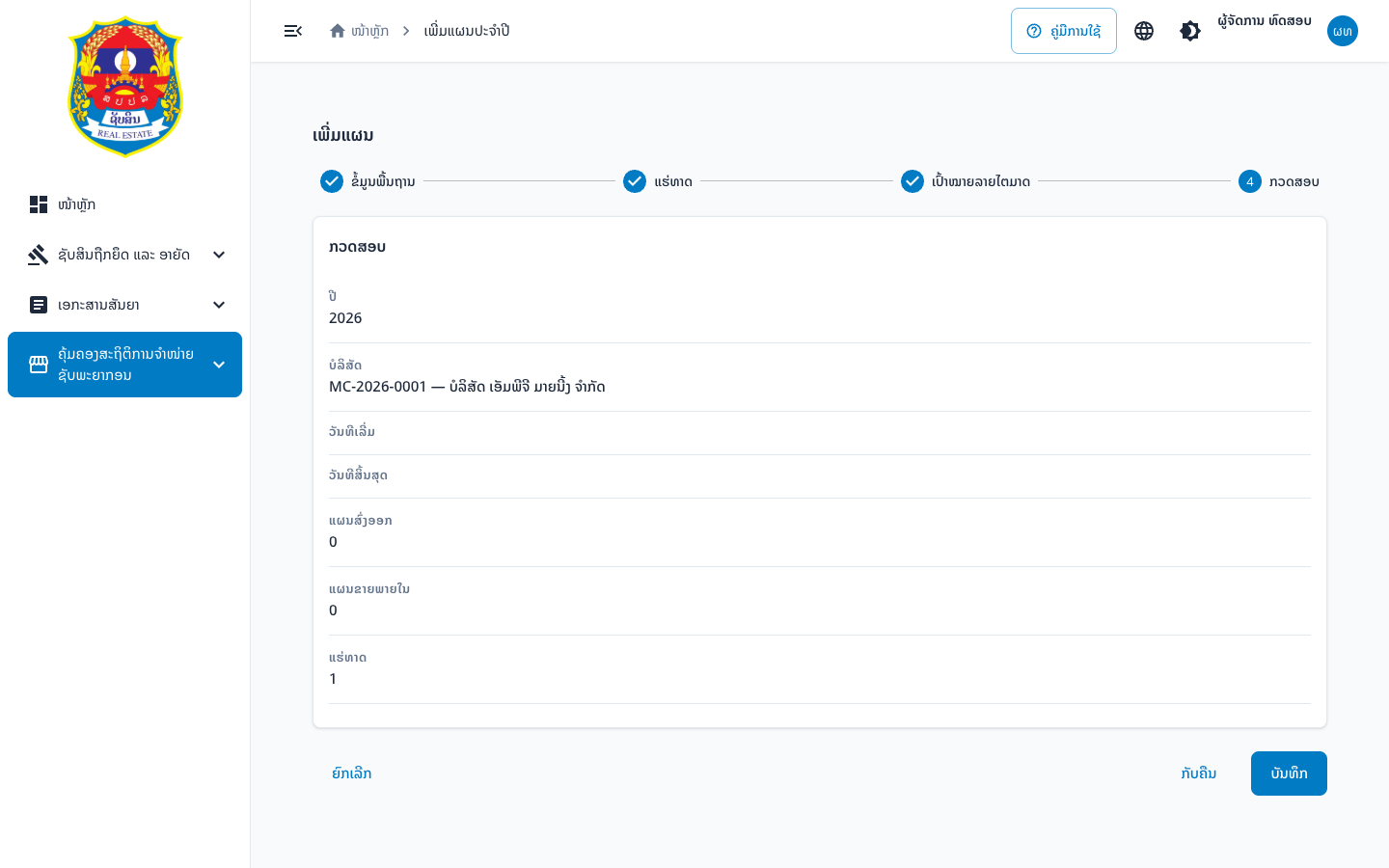
Check everything. Click Back to change something. If it is correct click Save. The plan is created as Draft. Cancel drops everything.
View plan details
Click the eye icon at the end of a row.
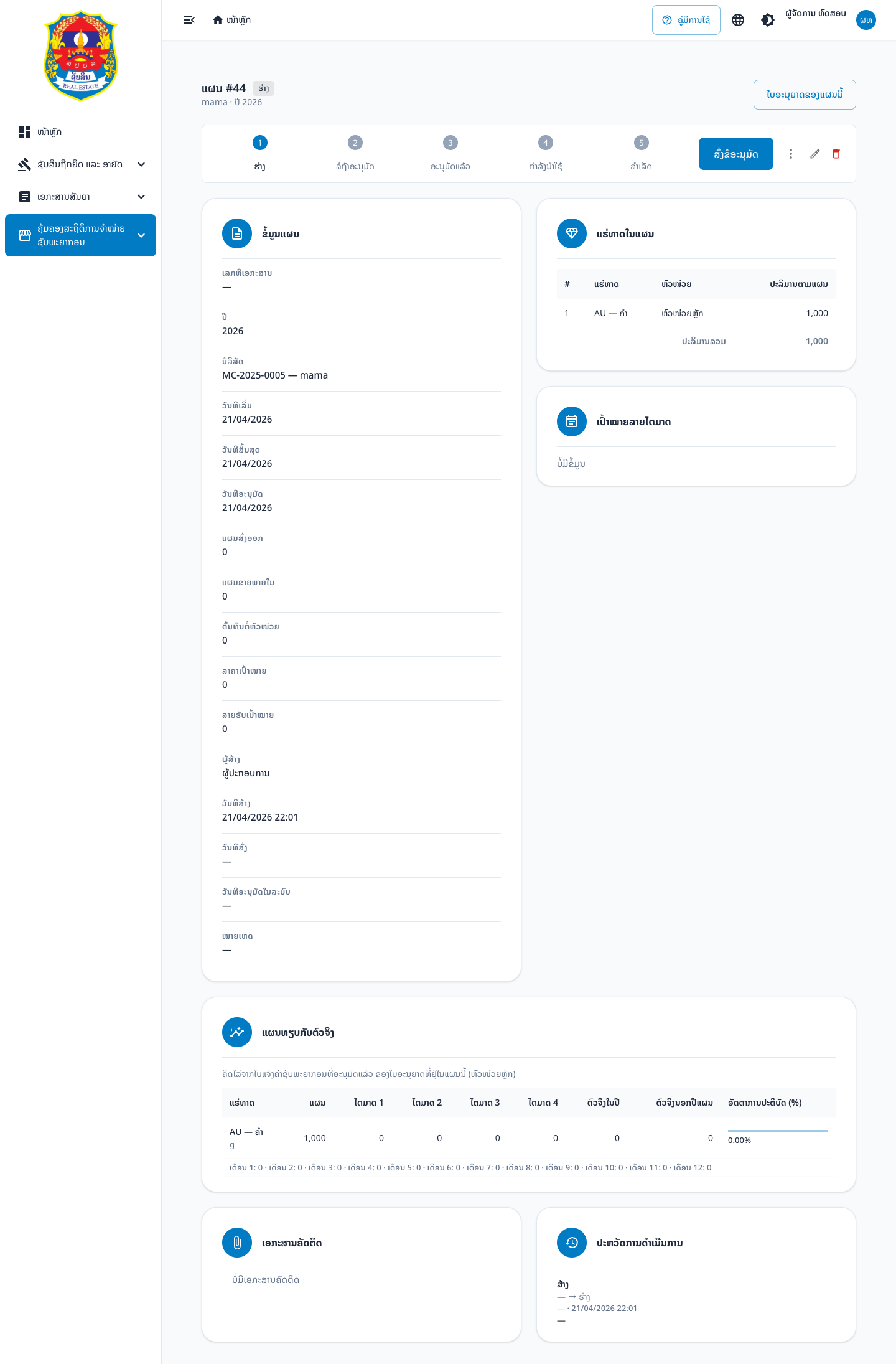
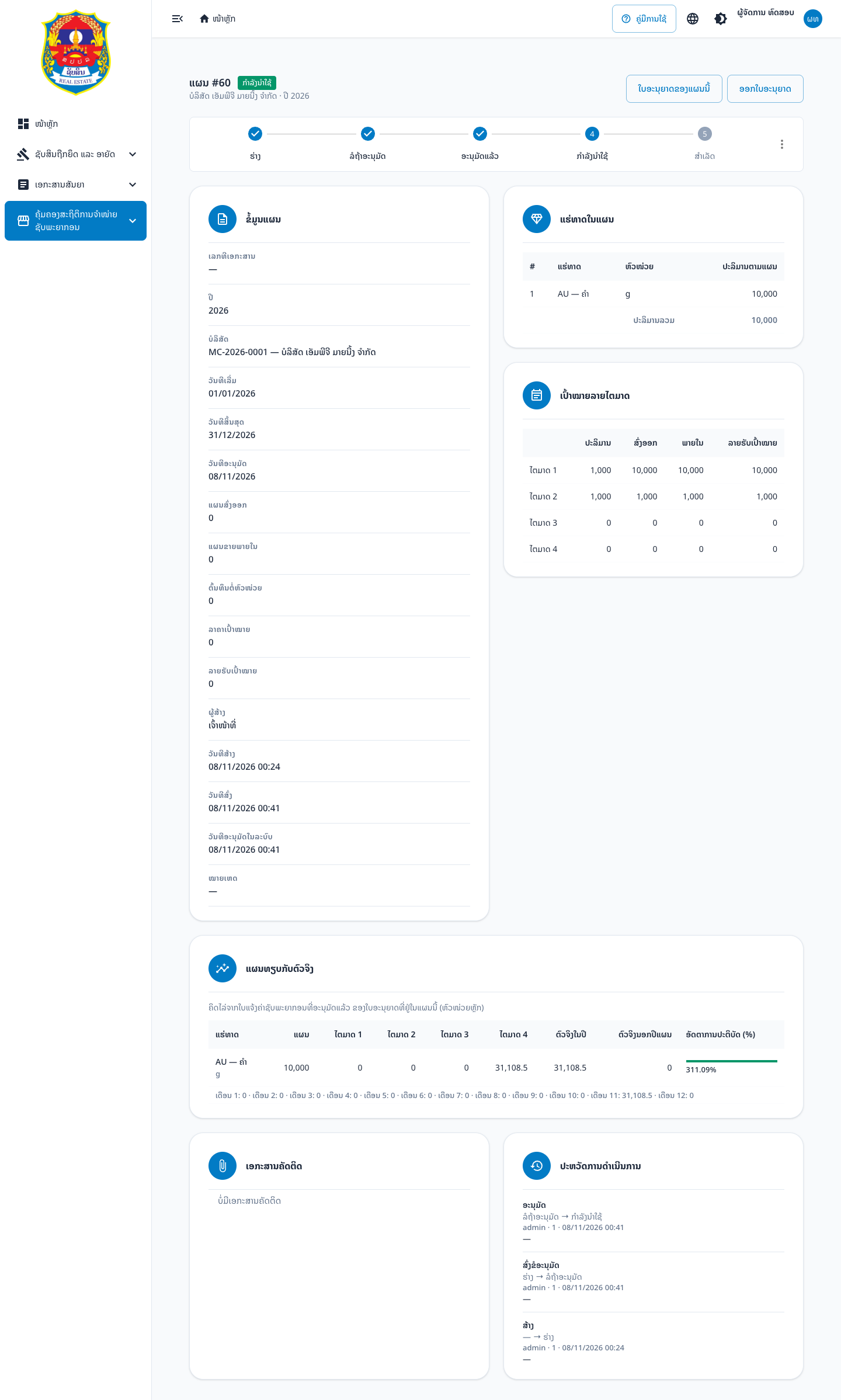
The page has:
- The step bar and next-step button at the top (see Overview).
- Plan information, Minerals and Quarter targets.
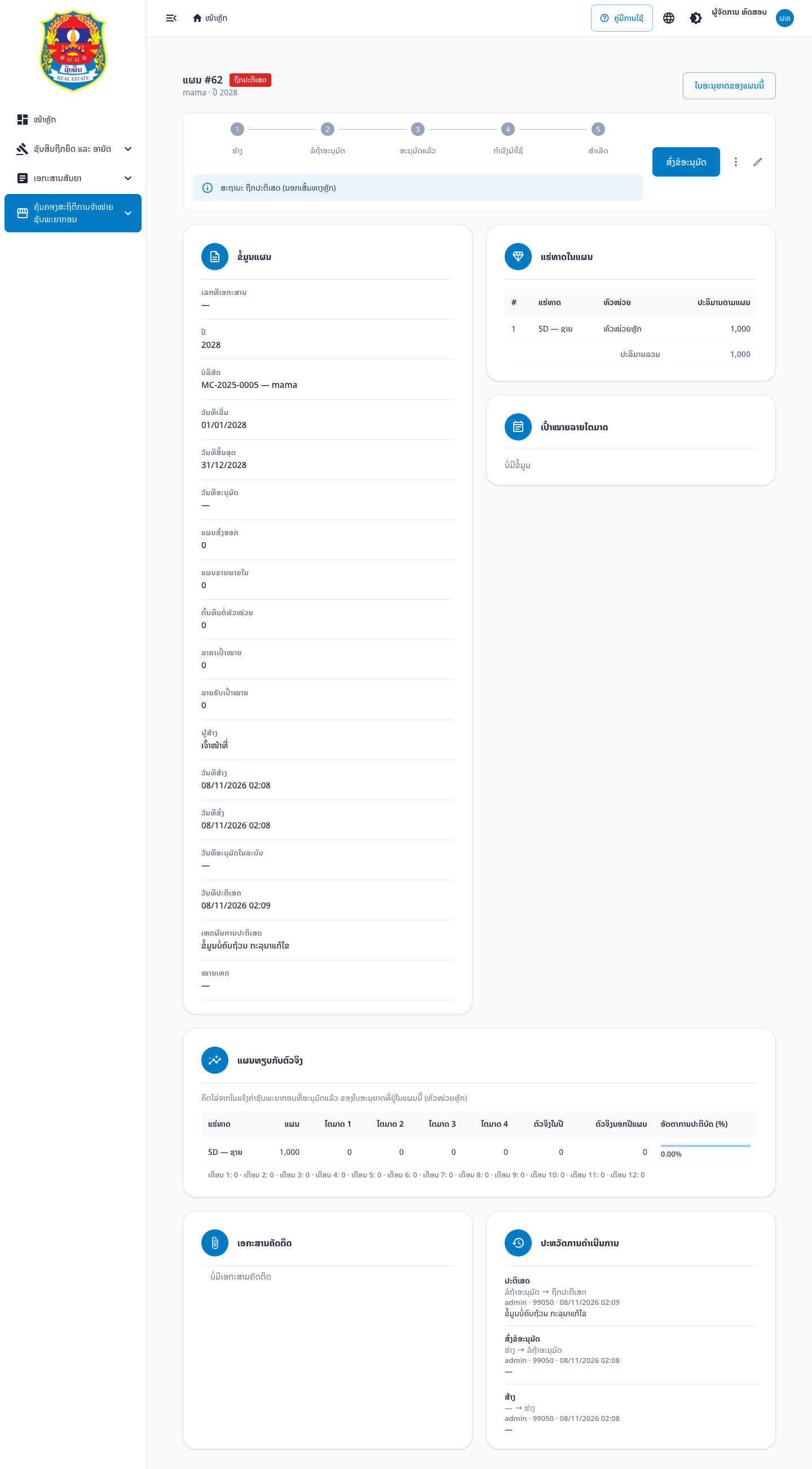
- Plan vs actual, which shows actual sales against the plan in %.
- Attachments and History (who did what and when).
- The Permits of this plan button at the top right, to see all permits issued under the plan.
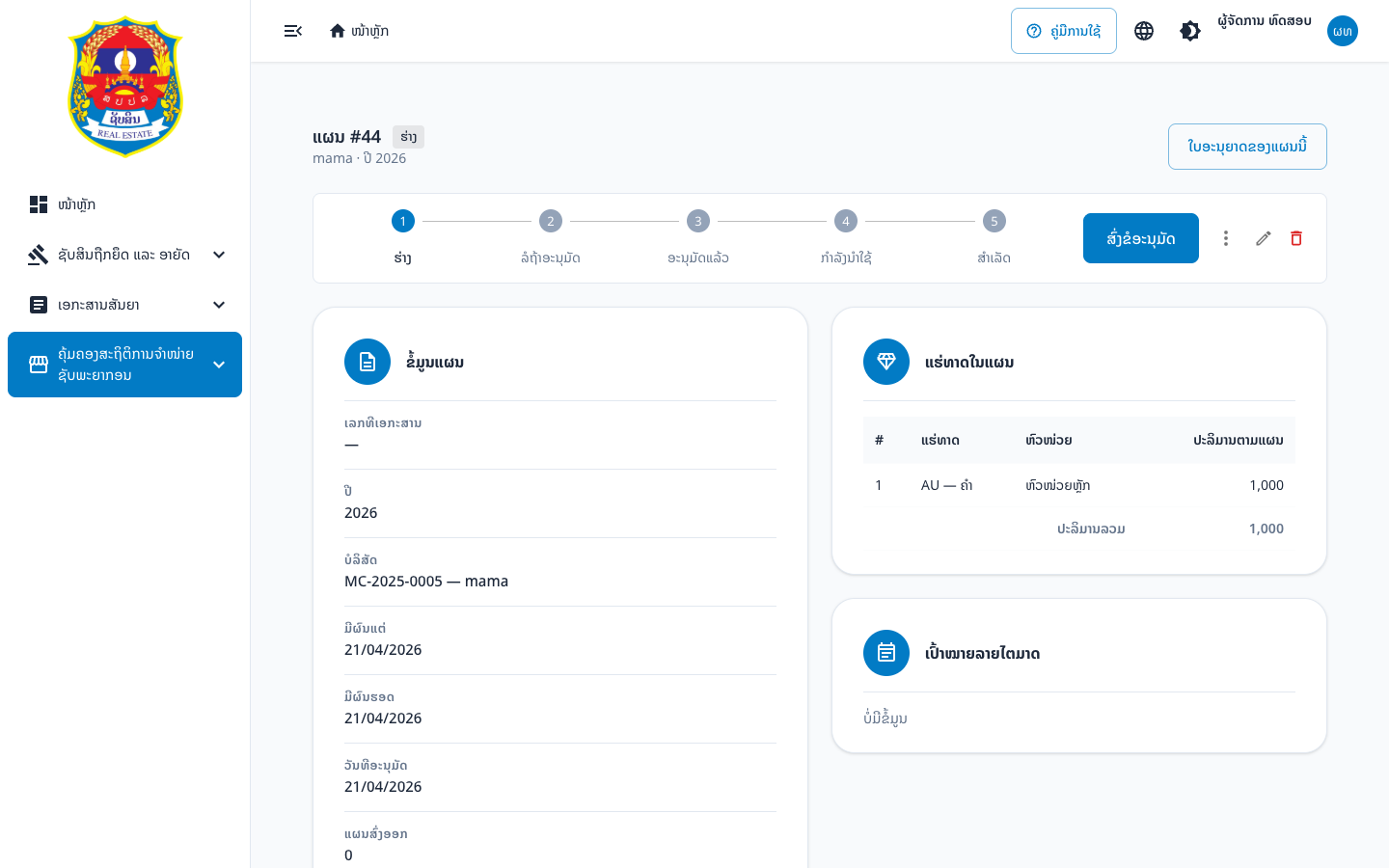
Submit for approval
A Draft plan has a blue Submit for approval button. The pencil icon is Edit plan and the bin icon is Delete plan. The ⋮ menu has Cancel plan.
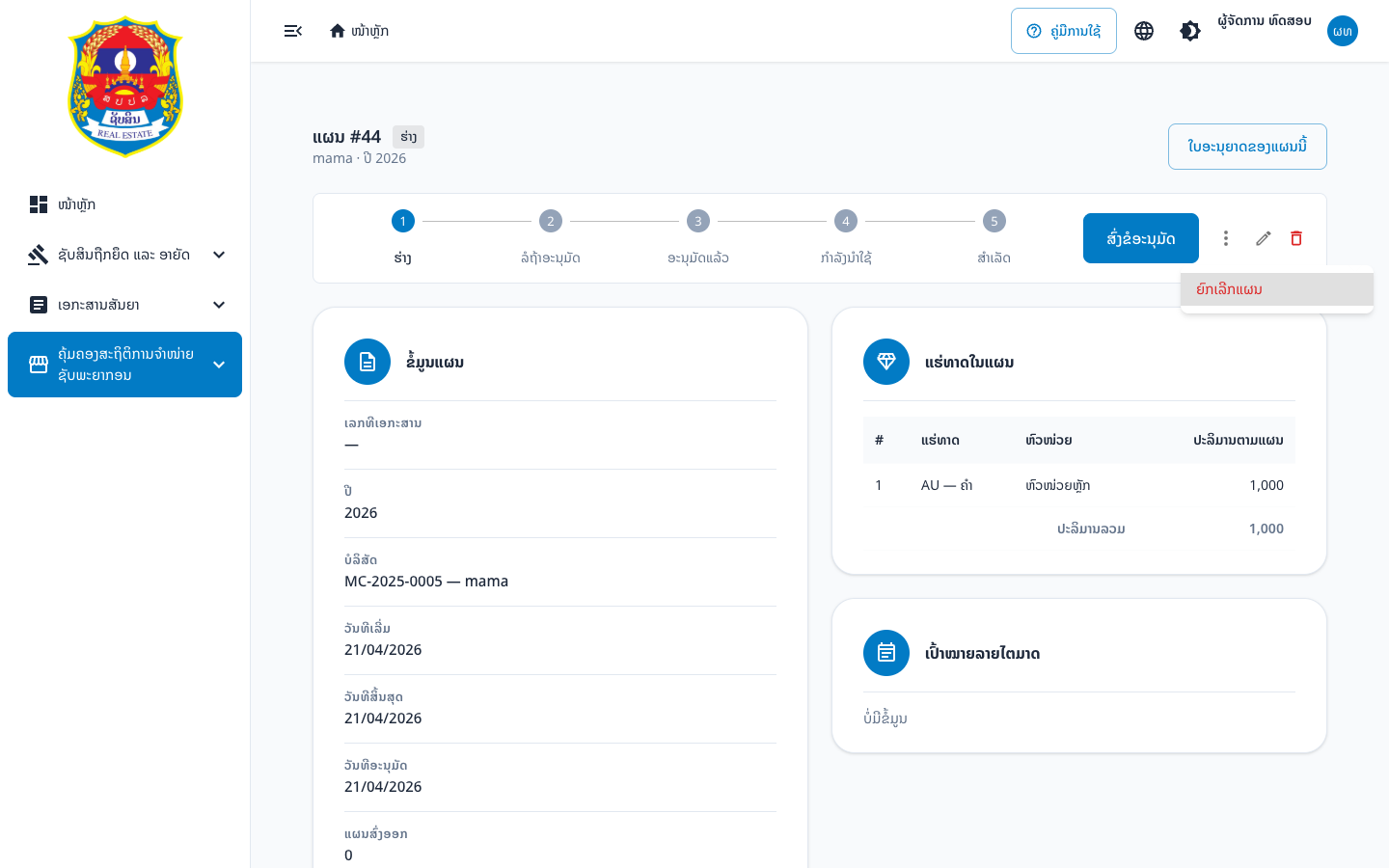
Cancel plan needs a reason of at least 10 characters. Delete plan asks you to confirm first.
Approve or reject
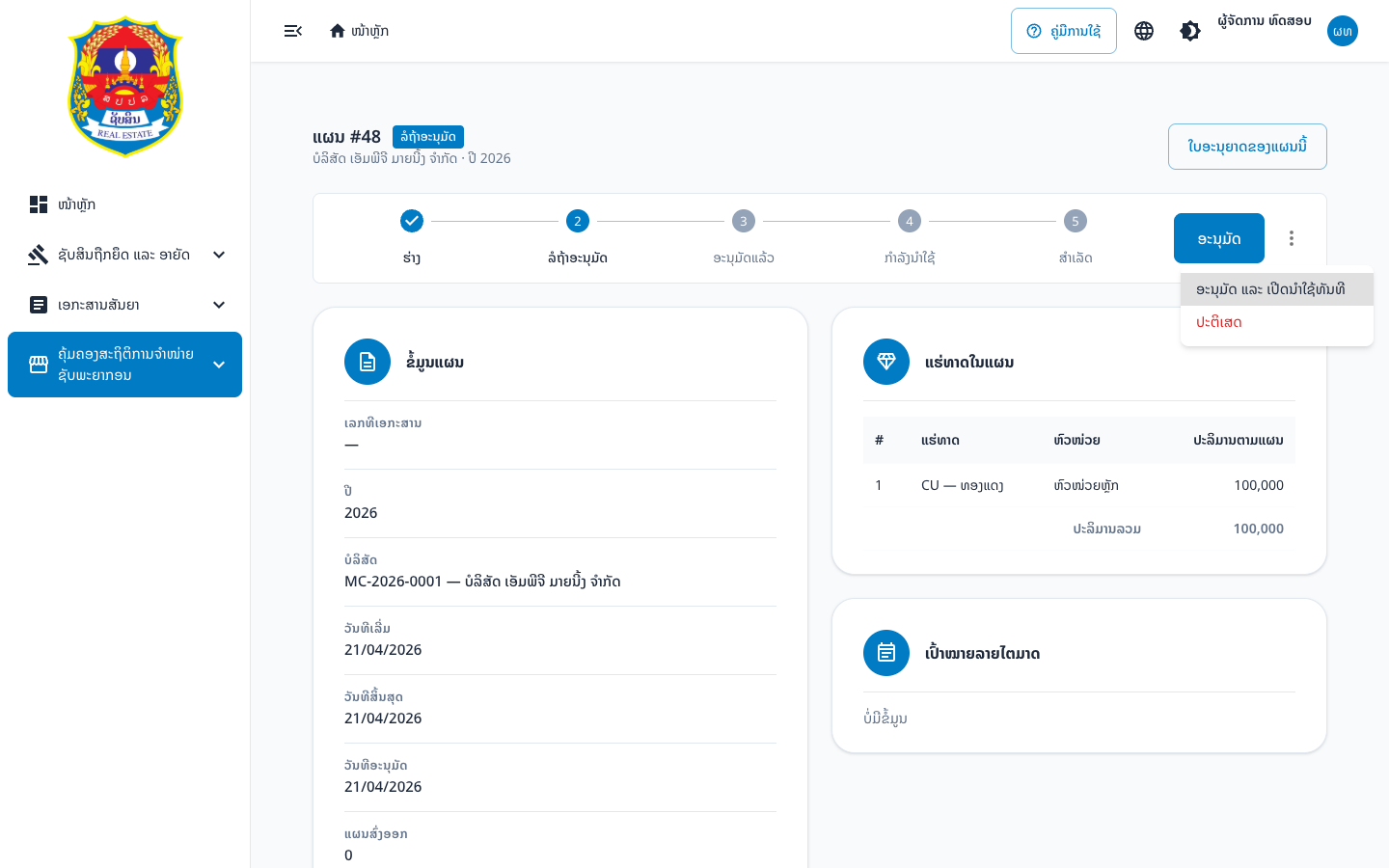
A Submitted plan has an Approve button (for approvers). The ⋮ menu has Approve and activate now and Reject.
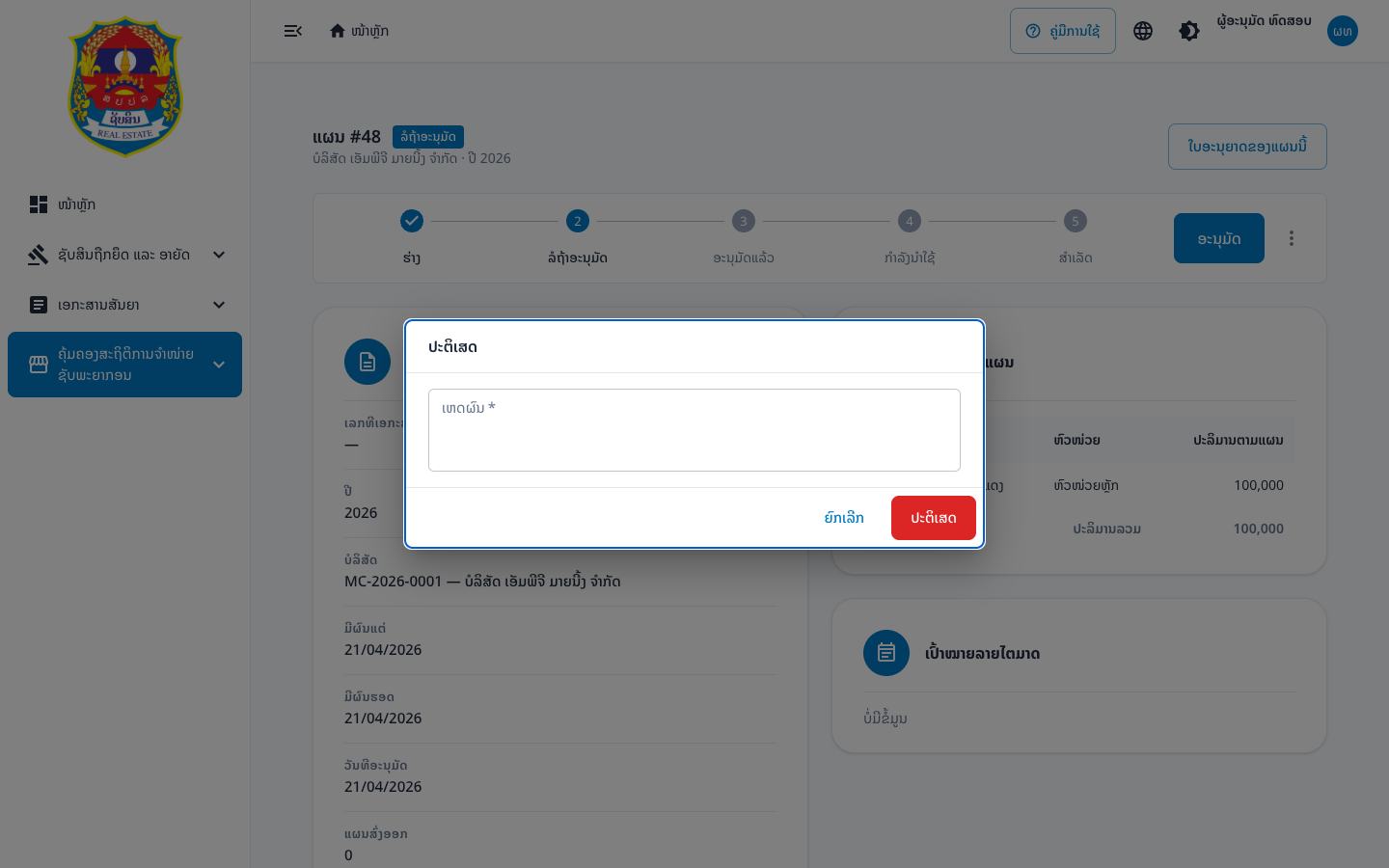
Reject needs a reason of at least 10 characters so the creator knows what to fix.
A Rejected plan can still be edited and submitted again.
Activate and close
- An Approved plan has an Activate button.
- An Active plan has an Issue permit button, and the ⋮ menu has Complete to close the plan at the end. If the plan still has permits that are not finished or cancelled, closing or cancelling the plan is blocked (hover over the button to see why).