Lot stickers
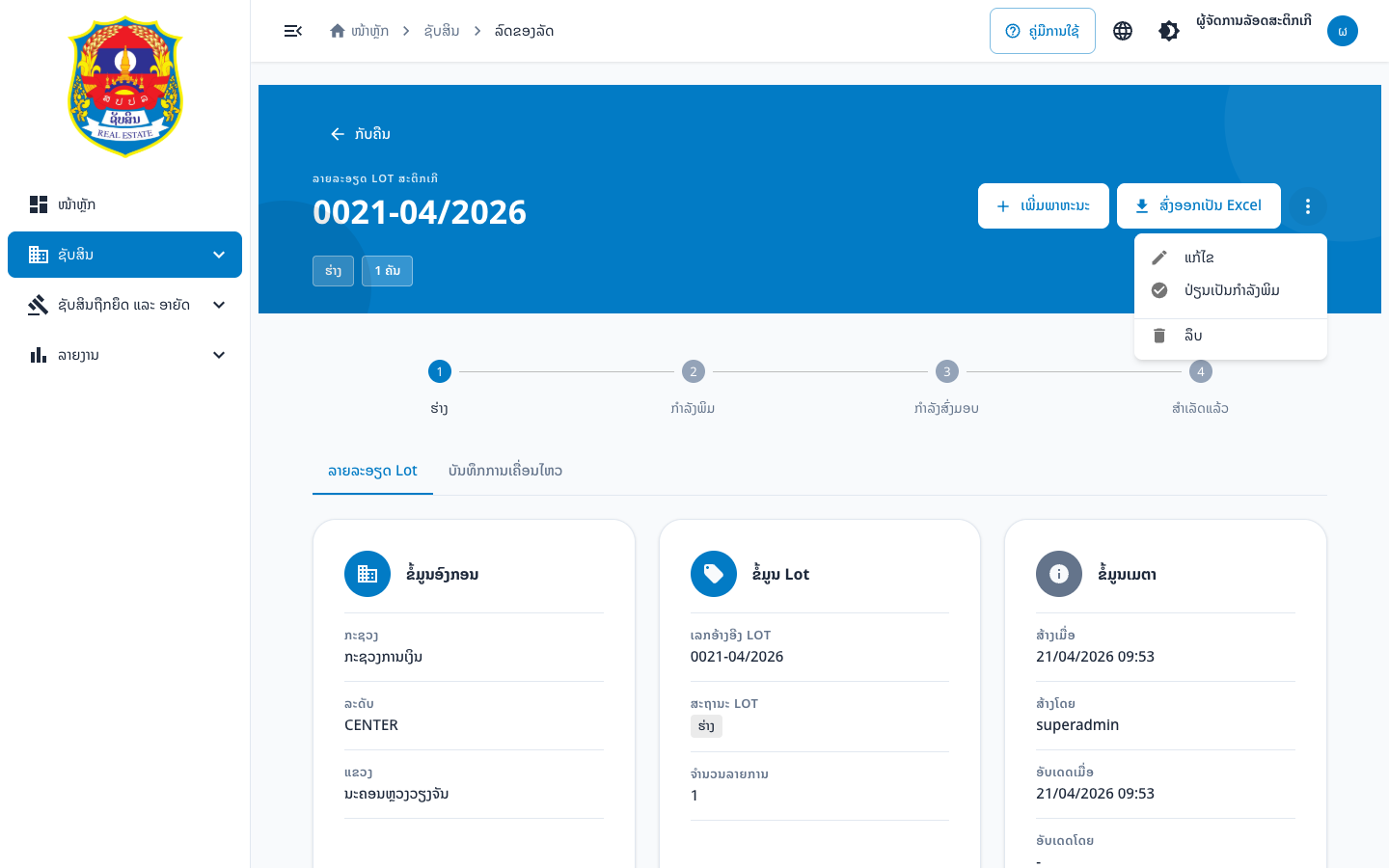
A Lot is a group of vehicles whose stickers are printed together. Each lot has a reference number and goes through 4 steps:
Draft → Printing → Delivery → Completed
Who can do what
| Permission | What you can do |
|---|---|
| Lot – Global View | See lots and export to Excel only |
| Lot – Create and manage | Everything above, plus create lots, add or remove vehicles, change the status, edit, and delete |
If you need a permission, tell the system administrator. See Permissions.
Open the lots page
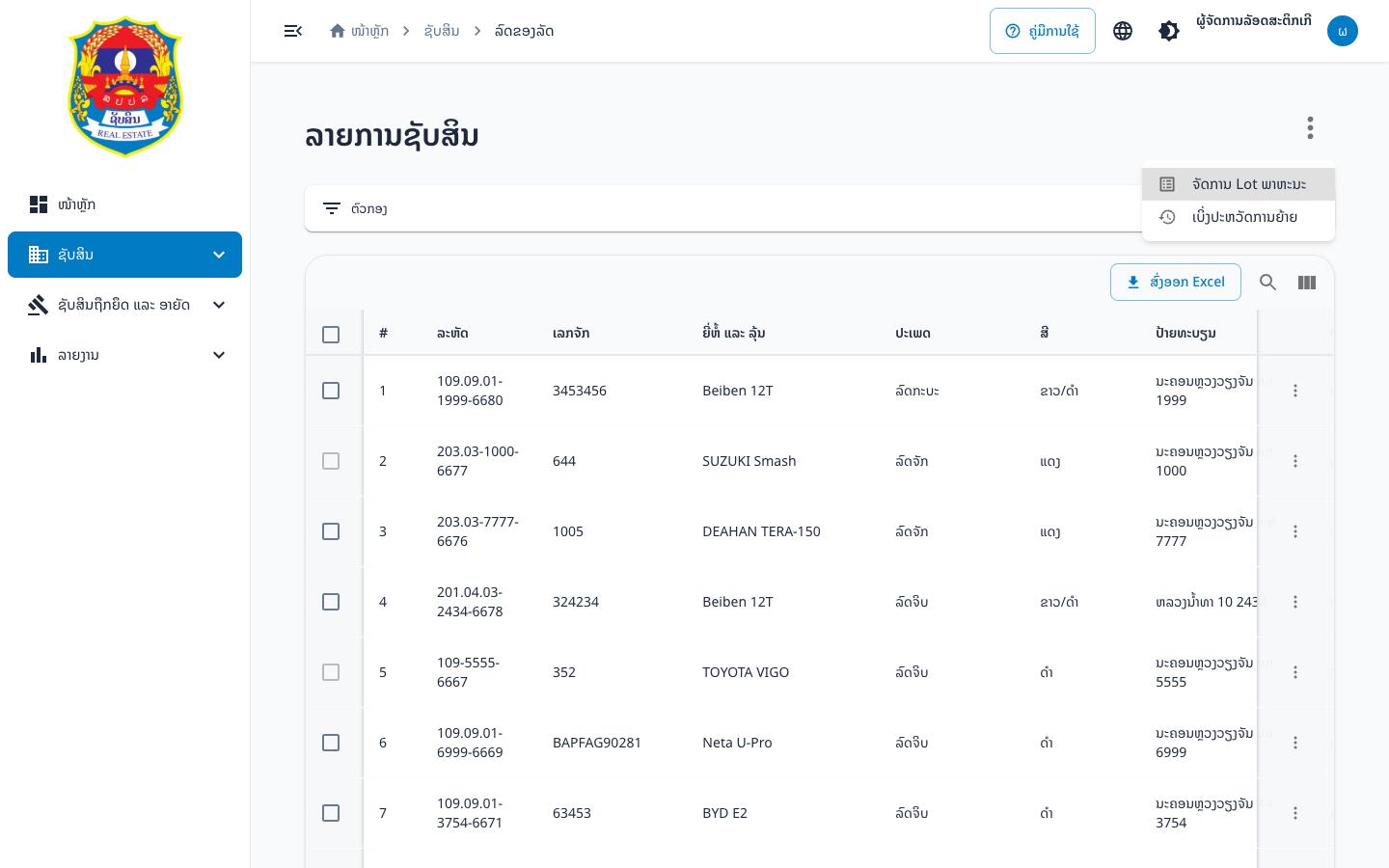
In the vehicle list, click ⋮ at the top right and choose Manage Vehicle Lots.
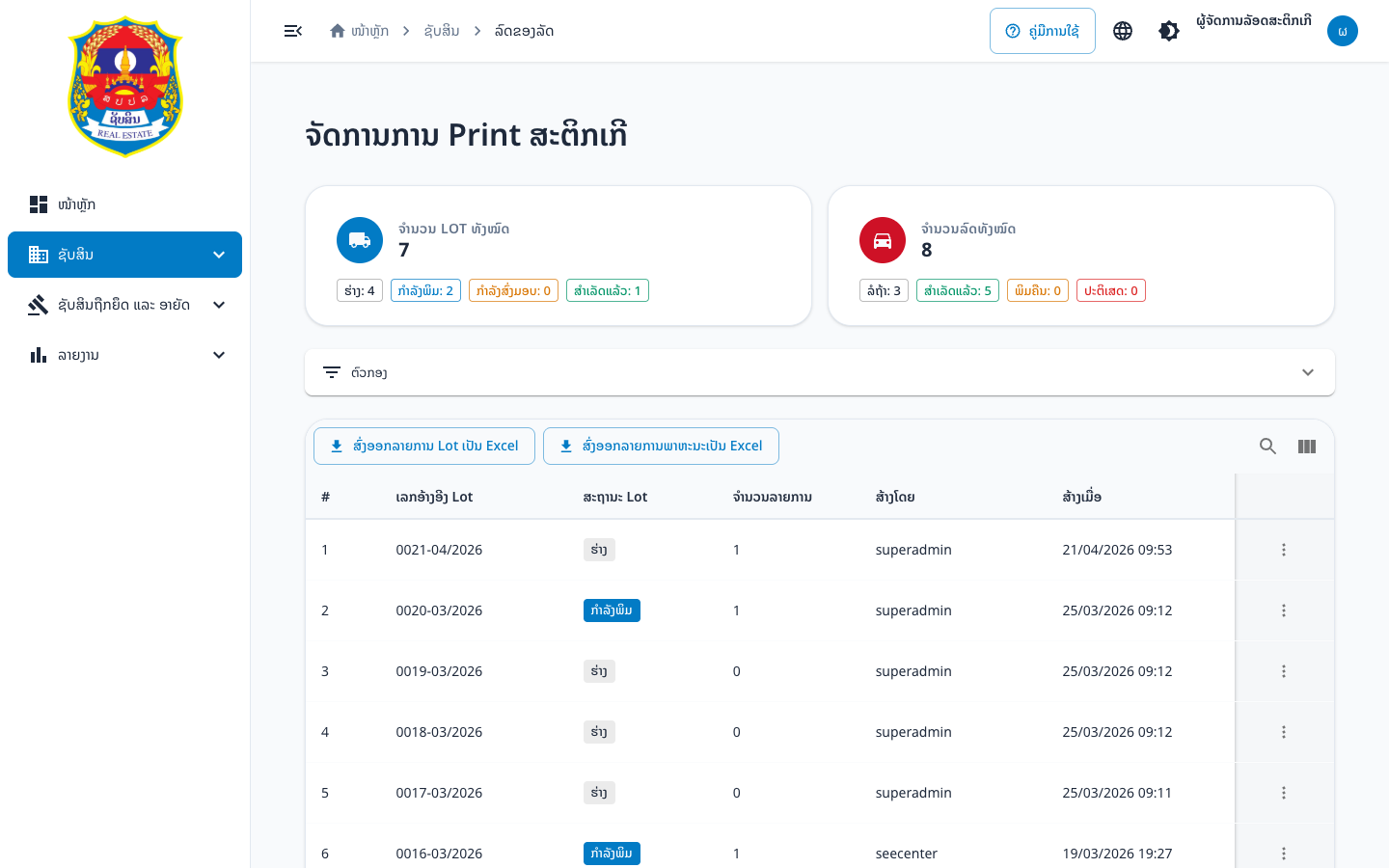
This page shows the number of lots and vehicles by status, with filters and a list of lots. Click ⋮ at the end of a row → View Details to open a lot.
Create a new lot
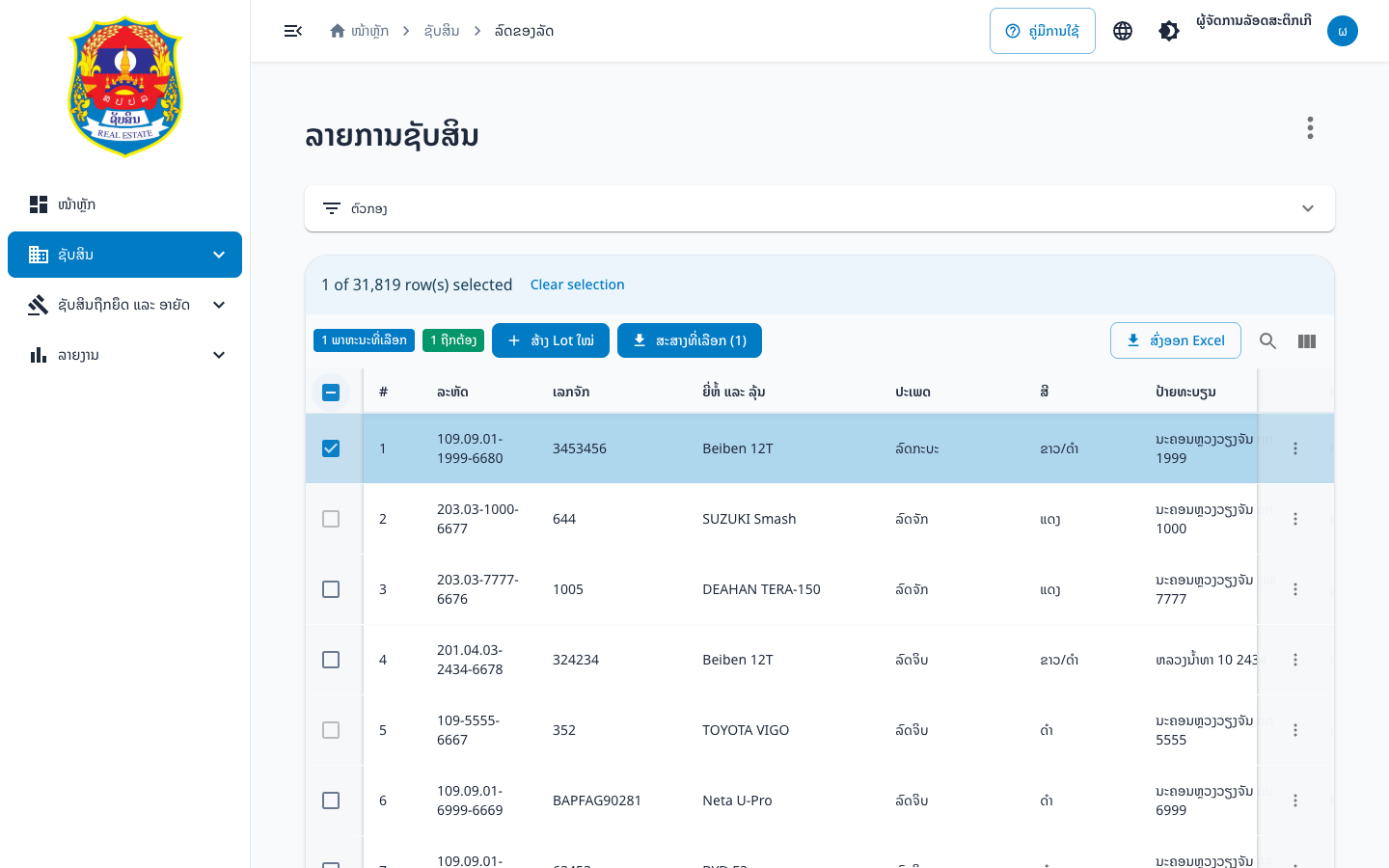
- In the vehicle list, tick the box in front of the vehicles you want. You cannot tick vehicles that are already disposed or are in a lot that is in progress.
- Click Create New Lot on the bar above the table.
Manage a lot
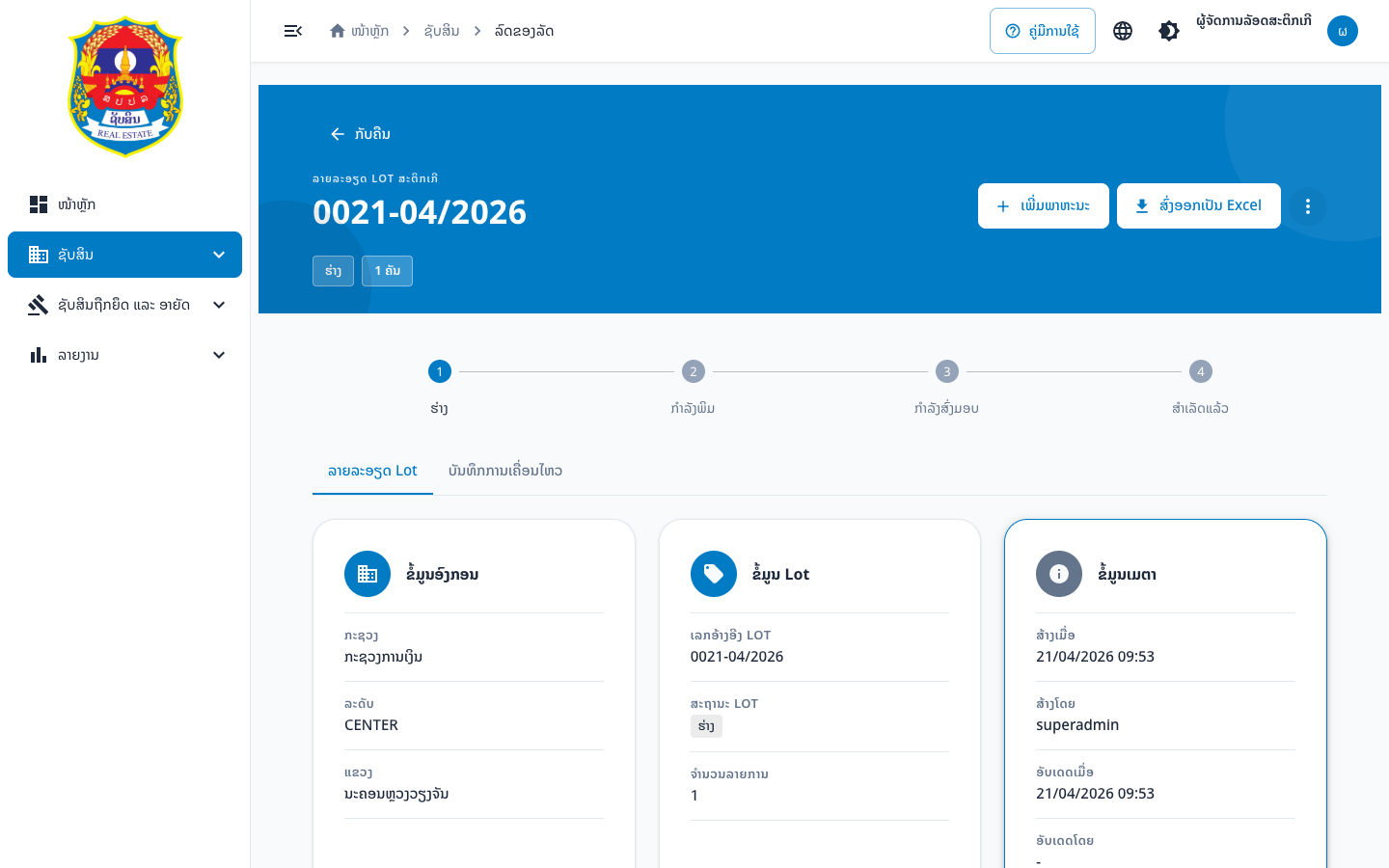
- Add Vehicles — add vehicles to the lot (while the lot is in Draft or Printing)
- Export to Excel — download the list in the lot as a file
- ⋮ — edit, move to the next step (for example Change to Printing), and delete the lot
- Activity Logs tab — see who did what in the lot, and when
If you can only view
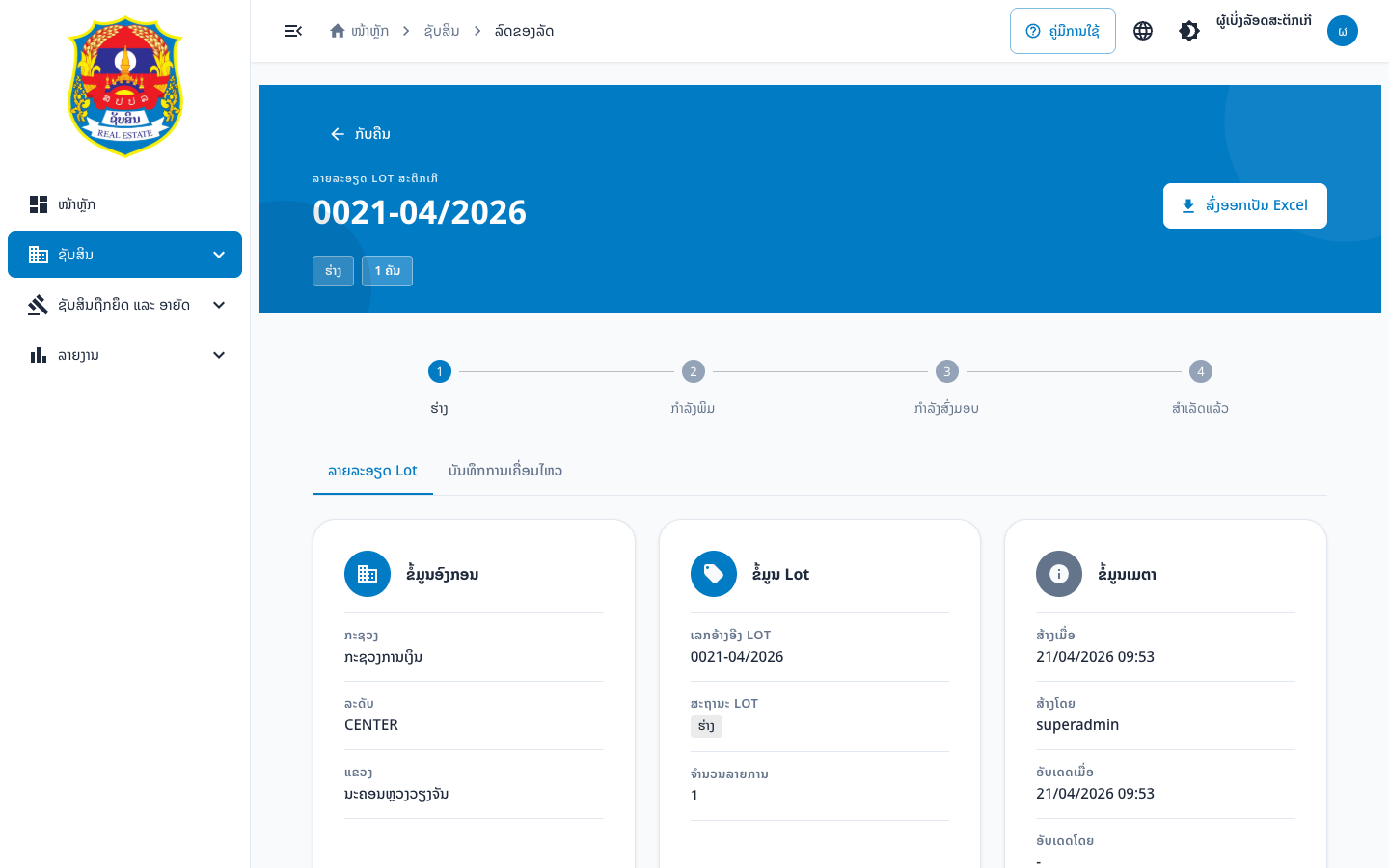
You will see only the Export to Excel button.
Common problems
| Problem | What to do |
|---|---|
| I do not see the Create New Lot button | Your account does not have the Lot – Create and manage permission |
| I cannot open the lots page | Your account does not have permission to see lots yet |
| I cannot tick a vehicle | The vehicle is already disposed, or it is in a lot that is in progress |
| I cannot move a vehicle | The vehicle is in a lot that is in progress |