Vehicle permissions
Not everyone can do everything. The buttons and menus you see depend on the permissions given to your position. The system administrator sets the permissions.
What permissions are there
| Permission | What it lets you do |
|---|---|
| View | Open the vehicle list, see details, filter, and export to Excel |
| Add | Click Create New Vehicle to register a vehicle |
| Edit | Change vehicle information and move vehicles |
| Lot – Global View | See lot stickers (view only) |
| Lot – Create and manage | Create lots, add or remove vehicles, change the status, and delete lots |
| Access Scope | See all vehicles, or only the vehicles of your own ministry, province, or district |
You need the View permission before any other one. Without it, you will not see the state vehicles menu at all.
What each account sees
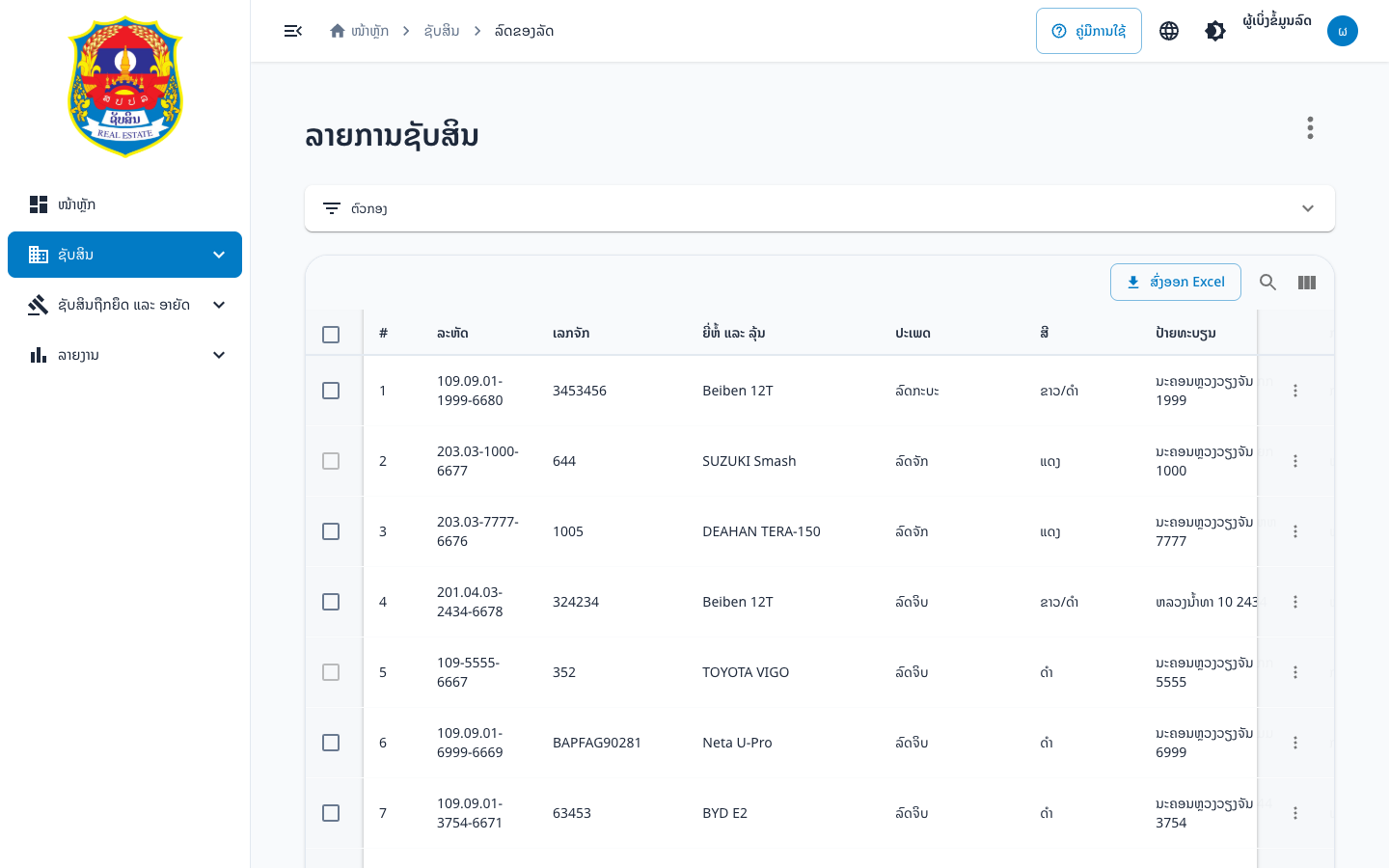
Vehicle viewer (has View)
Can see the list, filter, and export to Excel. There is no Create New Vehicle button.
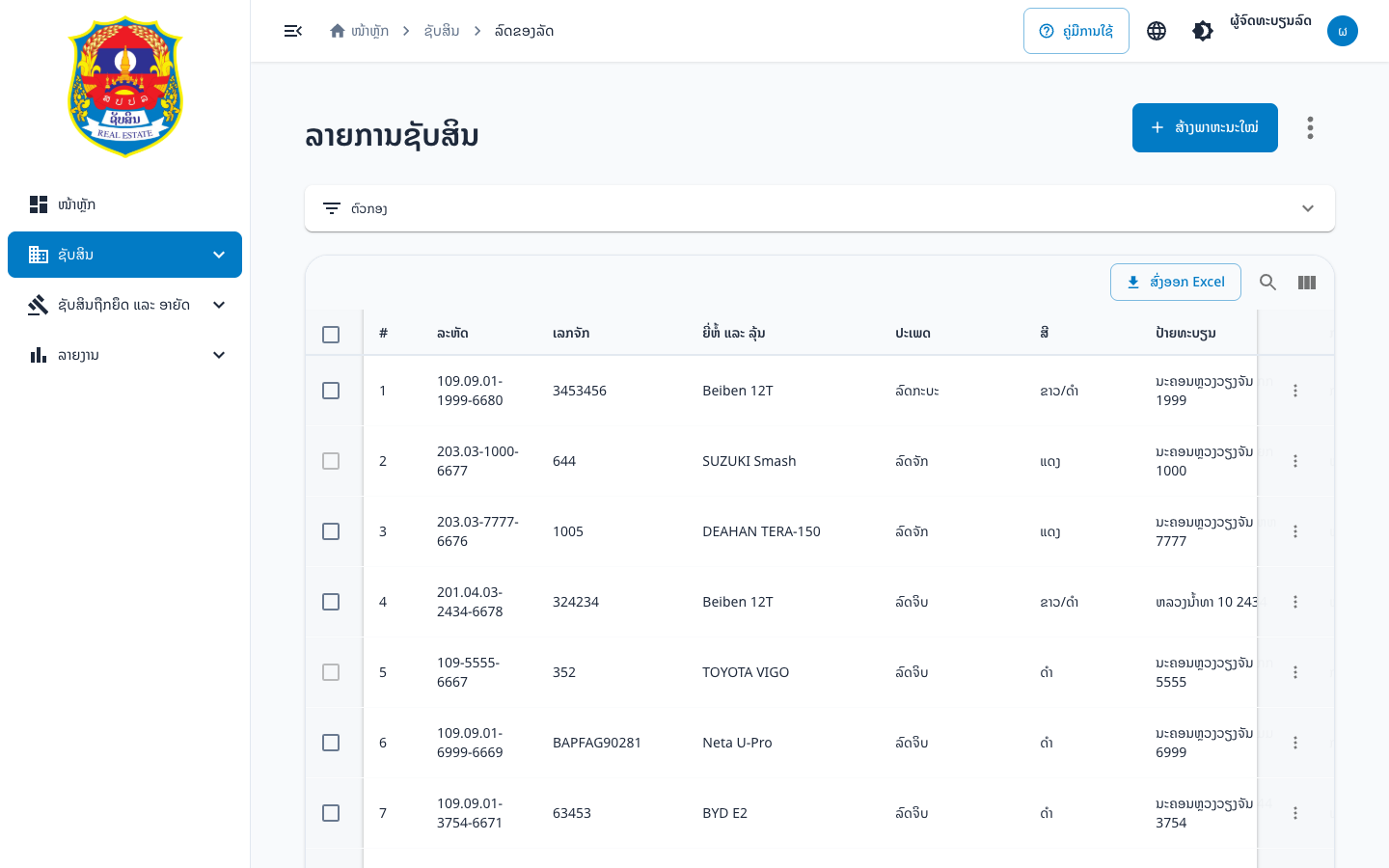
Vehicle registrar (View + Add)
Also sees the Create New Vehicle button.
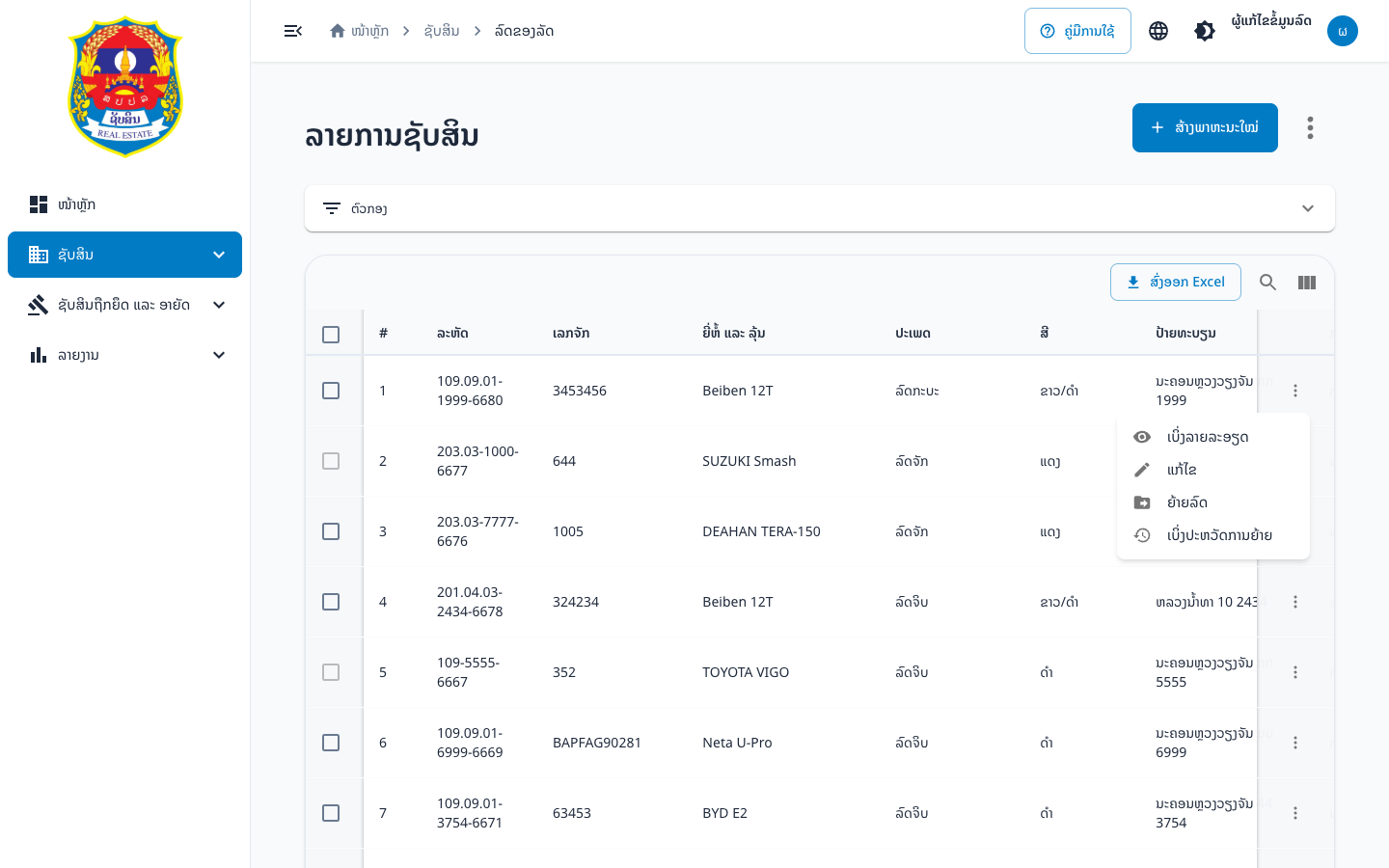
Vehicle editor (View + Add + Edit)
The ⋮ menu on each row has Edit and Move Vehicle.
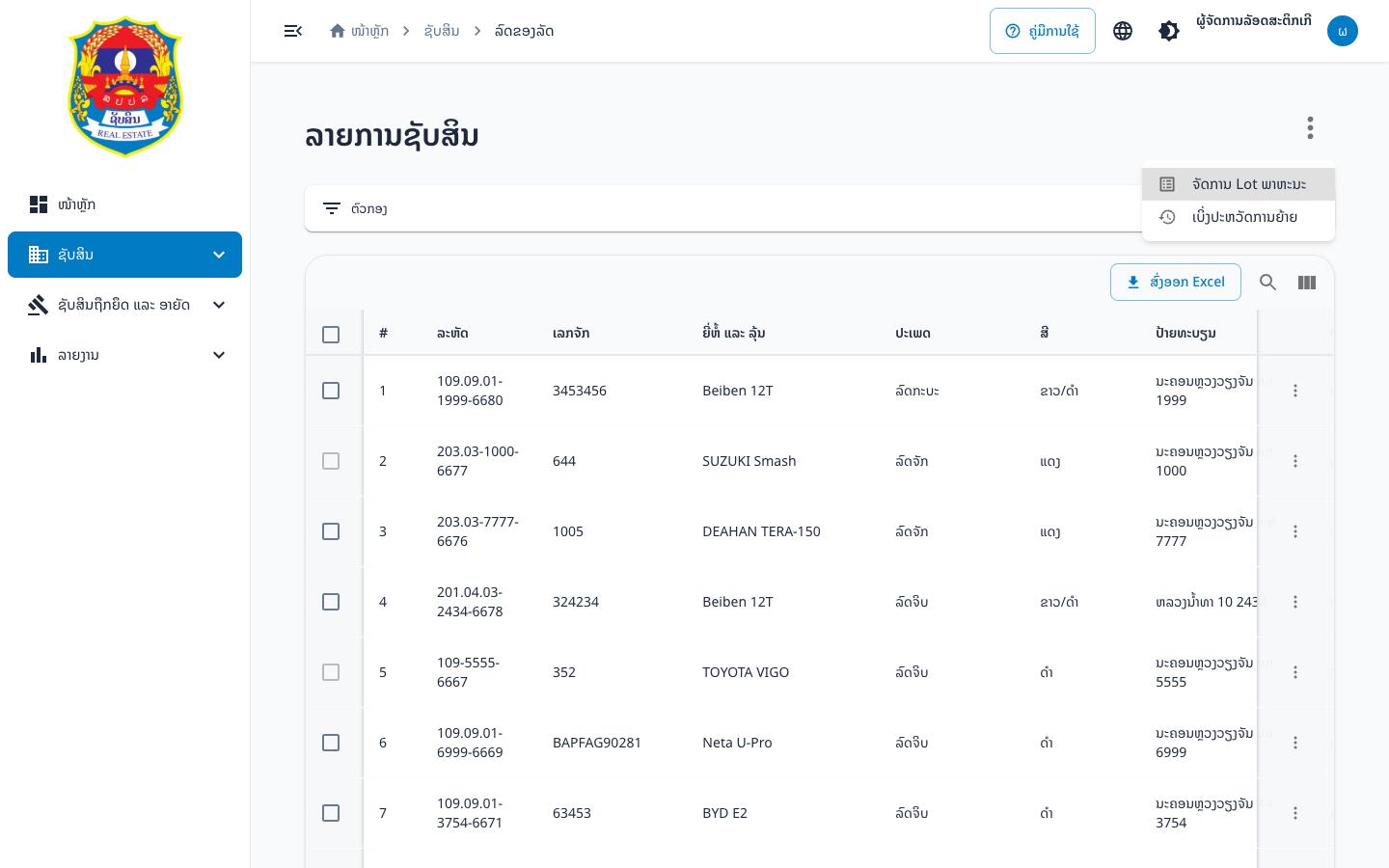
Lot sticker manager (View + Lot – Create and manage)
There is a ⋮ menu at the top right that leads to the lots page. When you tick vehicles, a Create New Lot button appears. See Lot stickers.
Lot sticker viewer (View + Lot – Global View)
Can open the lots page but only sees Export to Excel. There is no button to add vehicles and no edit menu.
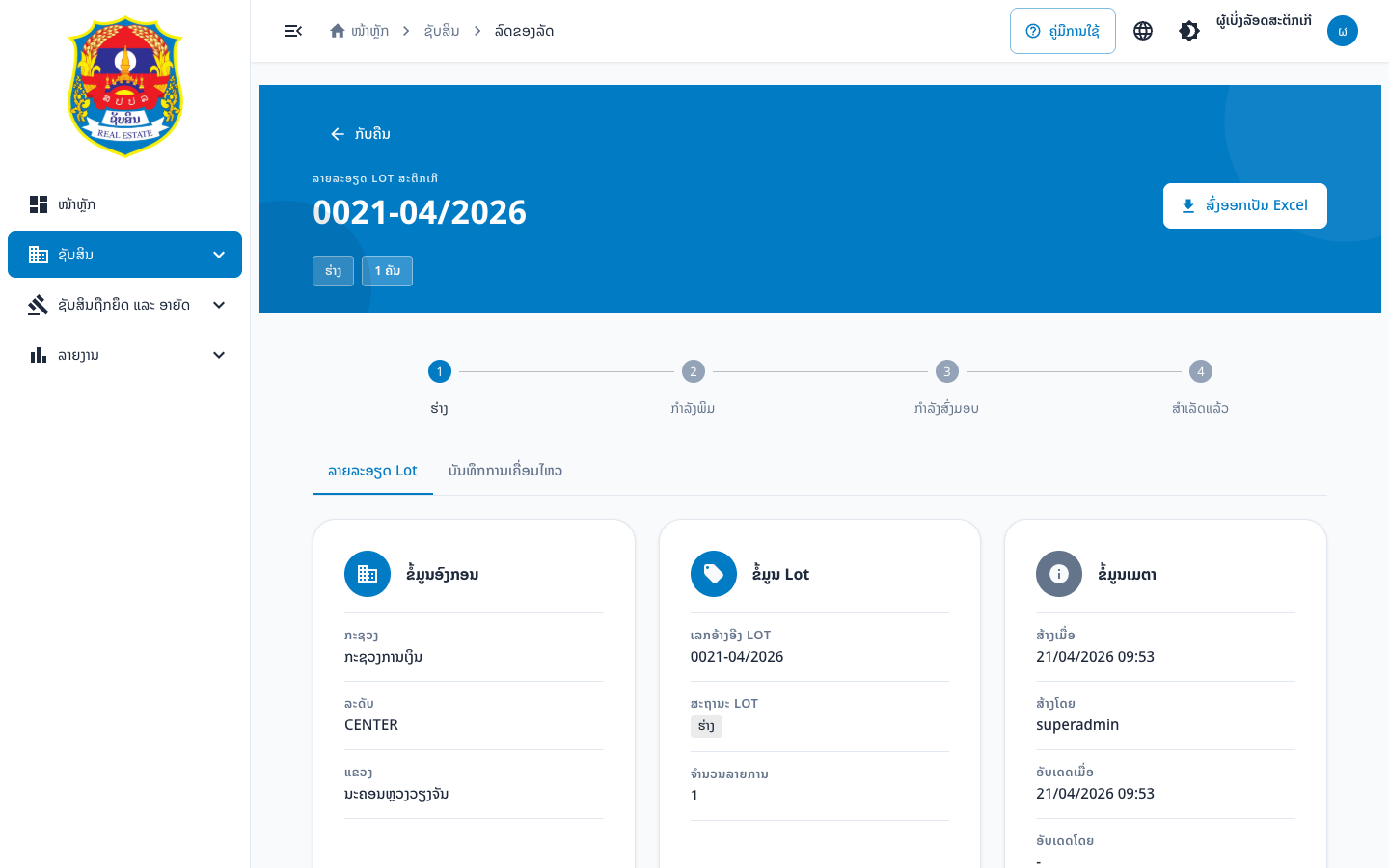
Ministry-only viewer (access scope = ministry)
Sees only the vehicles of their own ministry. Vehicles of other ministries are not shown.
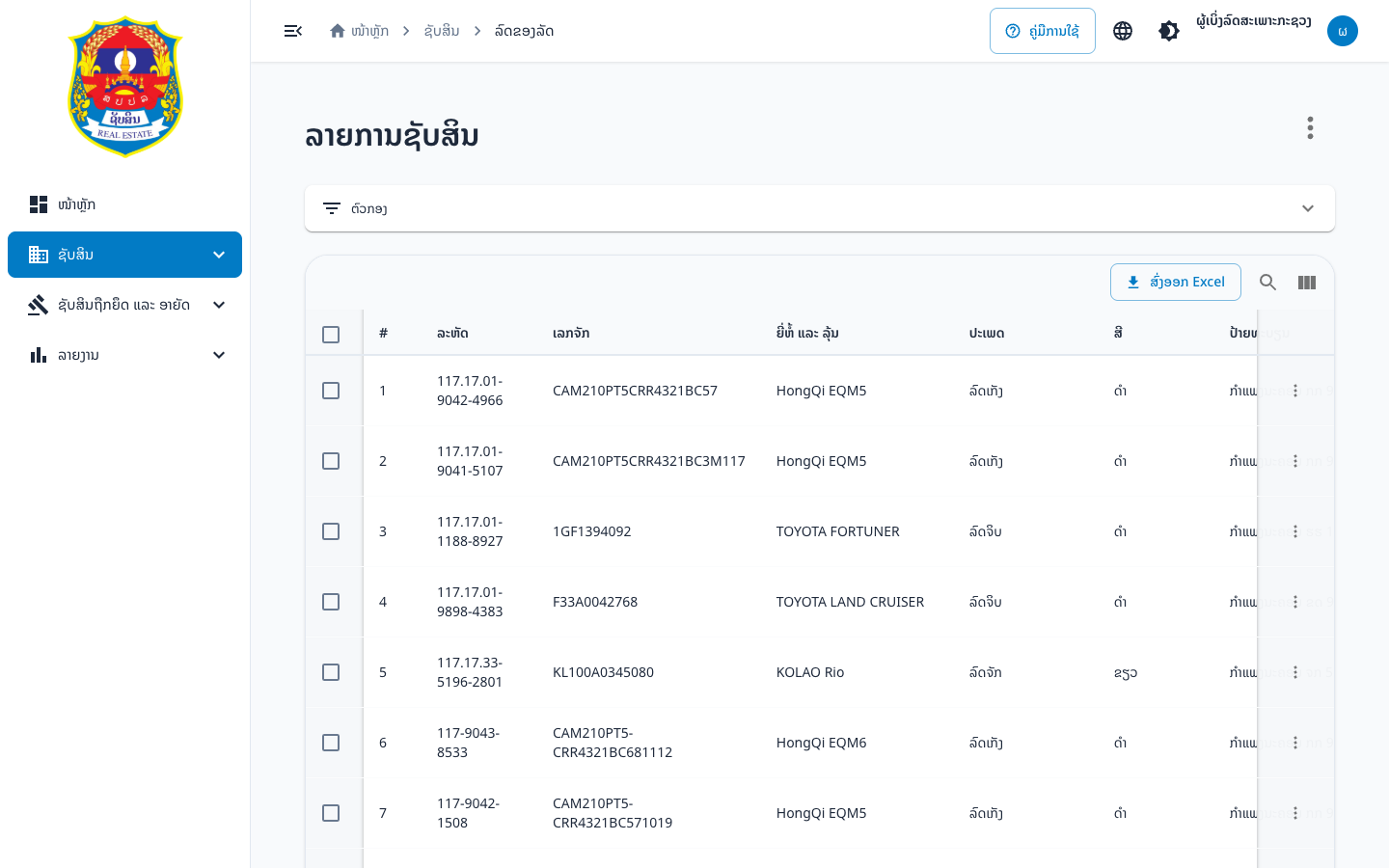
If you see the "Access Denied" page
It means your account does not have permission for that page.
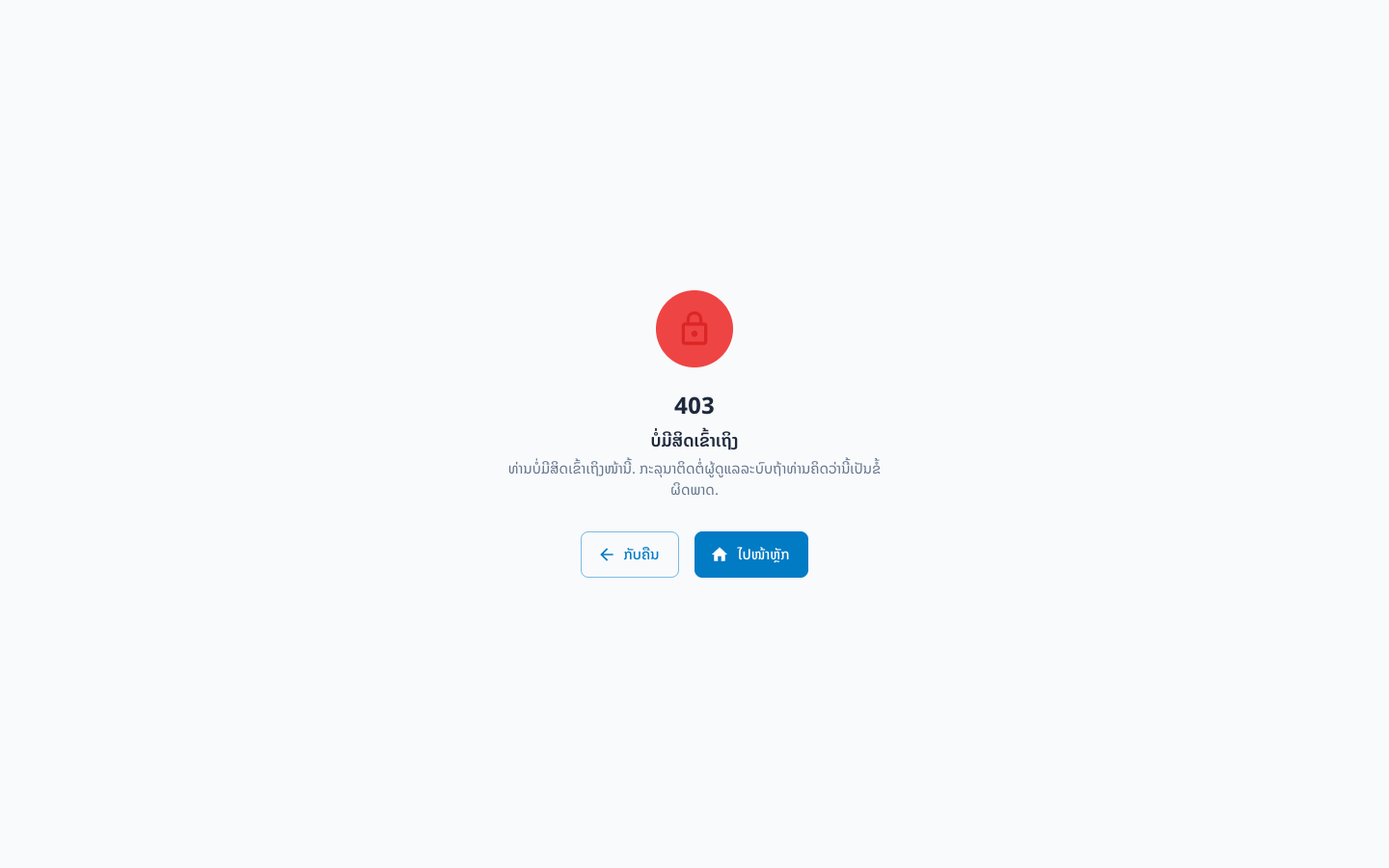
Click Go Back, then tell the system administrator what you need to do.
If you need more permissions
Tell the system administrator what you need to do, for example "I need permission to create new vehicles". The administrator will change the permissions for your position. After that, sign out and sign in again.