Resource fees
Permission needed: View. Issuing and editing need Add and Edit. Approving and recording payment need Approve. See Permissions.
A resource fee notice states how much the company must pay for the mineral it will sell under a permit. A notice must be linked to a Sales Permit.
Open the list
Click Mineral Sales in the left menu, then click Resource fees.
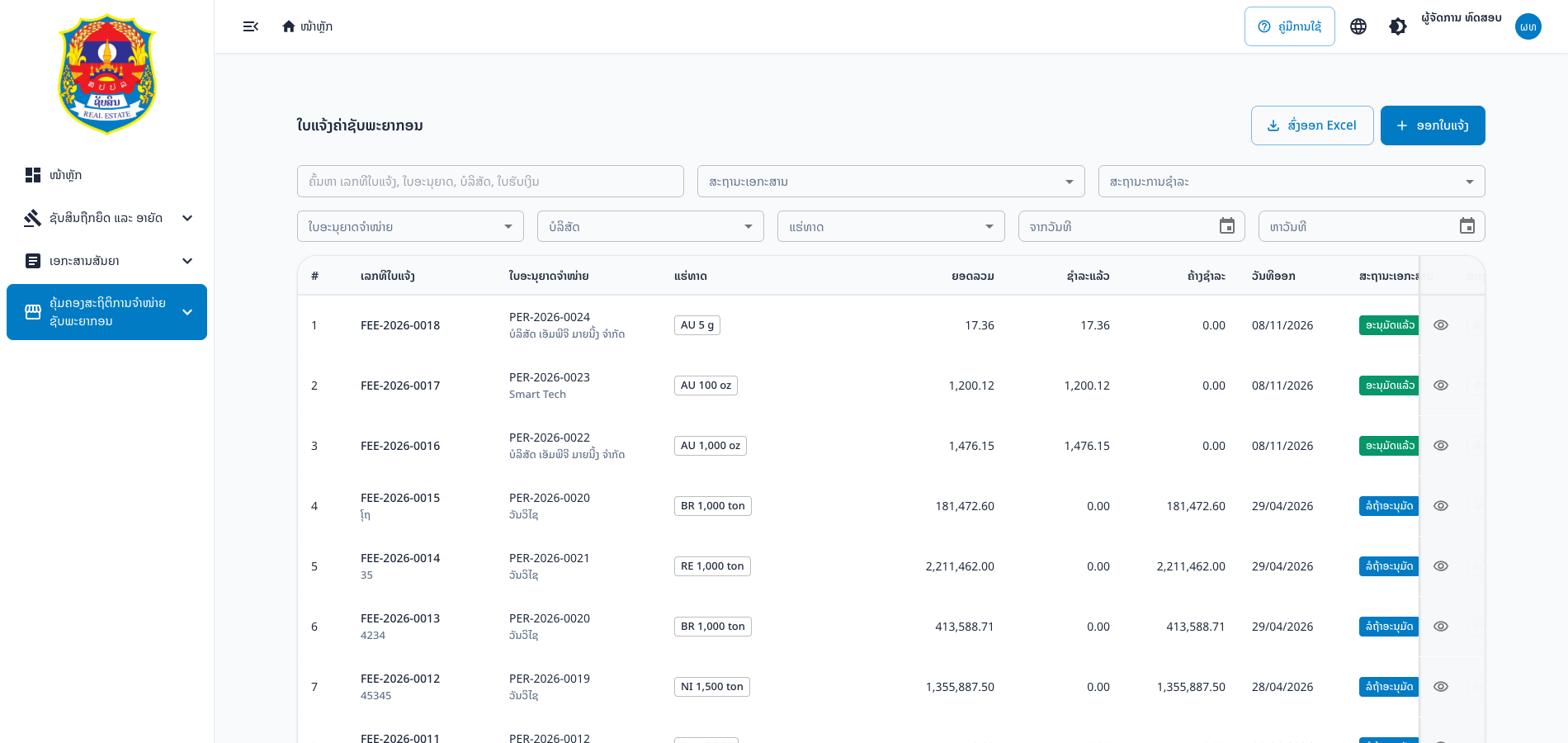
The table shows notice no., sales permit, company, mineral, total, paid, outstanding, issue date and two statuses:
- Document status: Draft, Submitted, Approved or Cancelled.
- Payment status: Pending, Partially paid, Paid, Completed or Payment cancelled.
Filter by document status, payment status, permit, company, mineral and dates. Export Excel saves the list as a file.
Issue a notice
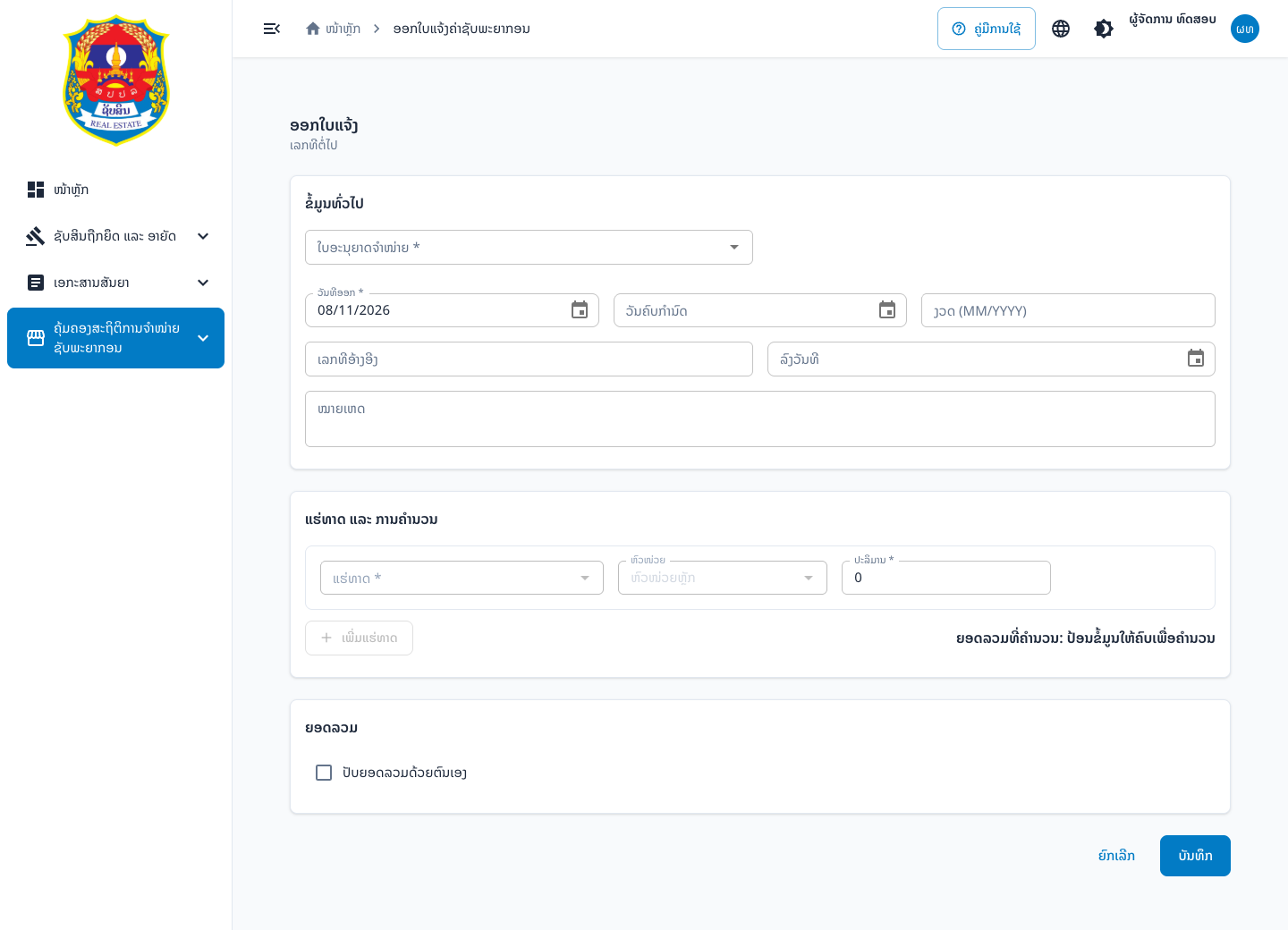
- Click Issue fee notice at the top right.
- Choose the Sales permit (required).
- Check the Issue date (today by default) and add the Due date, period, reference no. or notes if needed.
- In Minerals and calculation choose the Mineral and Unit and type the Quantity. Some minerals, such as gold, also need a reference price and quality. Click Add mineral for more.
- The system works out the Total fee from the price and the fee rate. If you must adjust the total, tick Override the total manually and type the reason.
- Click Save.
View details
Click the eye icon at the end of a row.
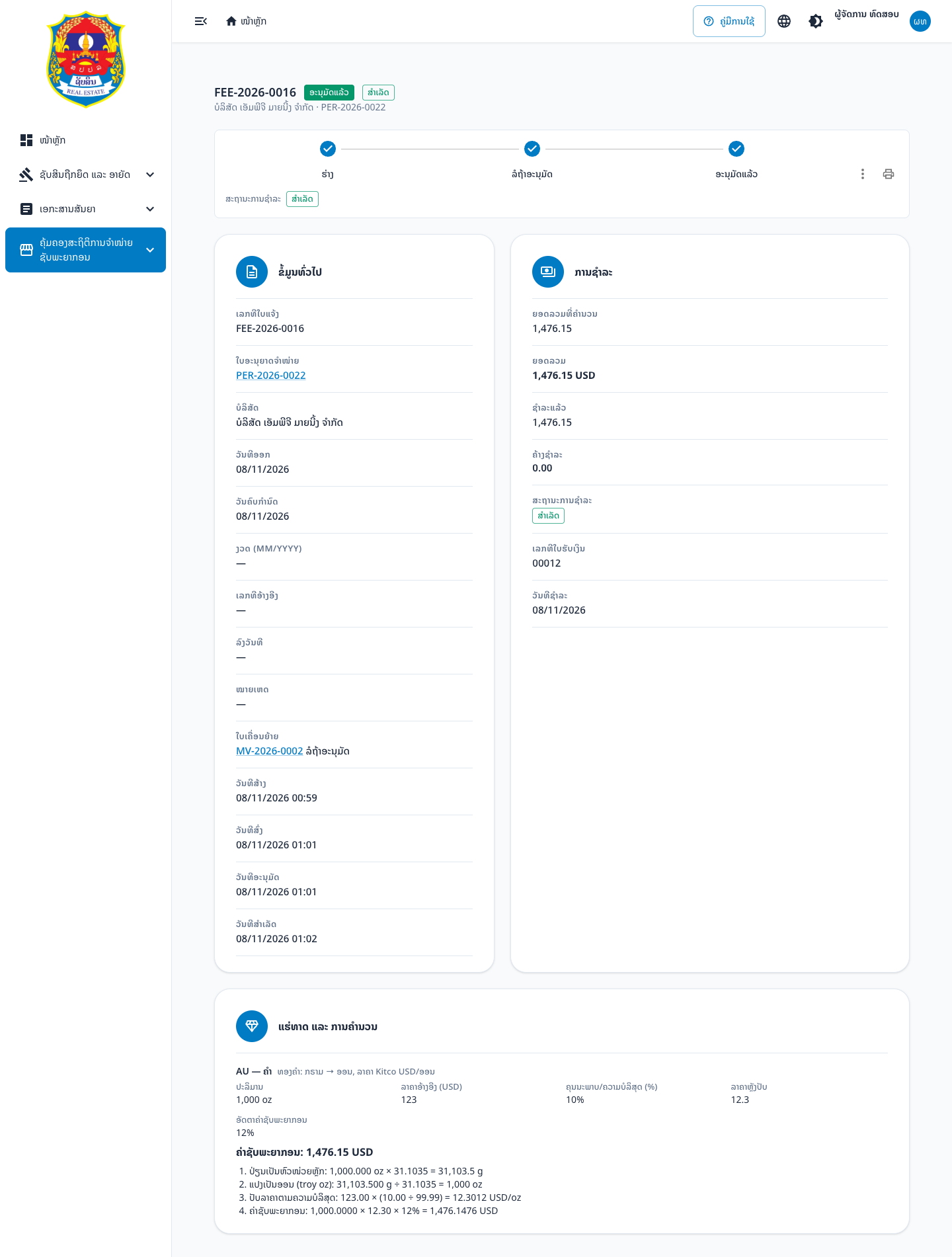
The page has:
- The step bar Draft → Submitted → Approved and the next-step button.
- General: notice no., permit, company, issue and due dates, and the movement permit linked to the notice.
- Payment: total, paid, outstanding, payment status, receipt no. and payment date.
- Minerals and calculation: quantity, reference price, quality, fee rate and the calculation step by step so it can be checked.
Submit, approve and return
A notice goes Draft → Submit for approval → Approve.
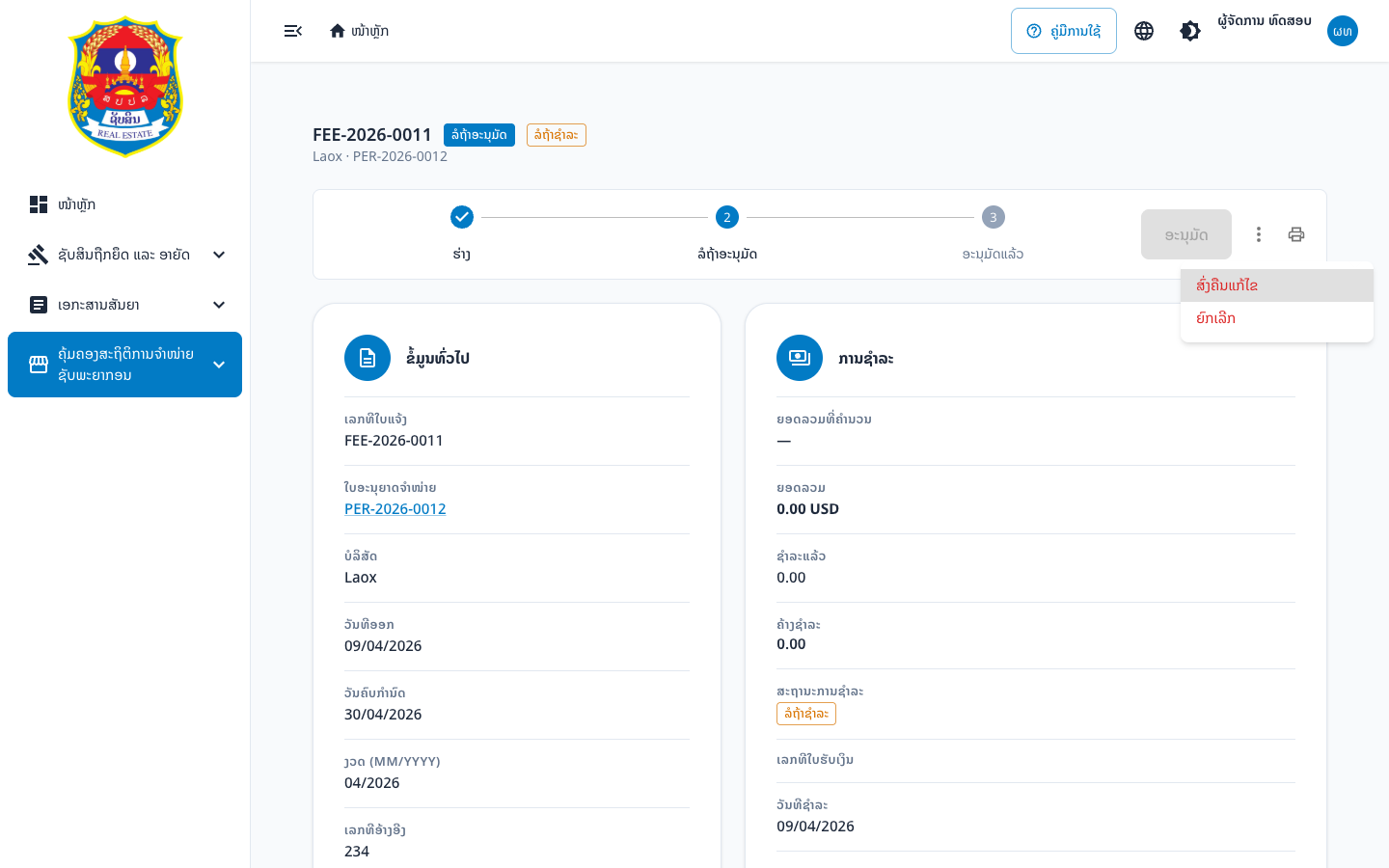
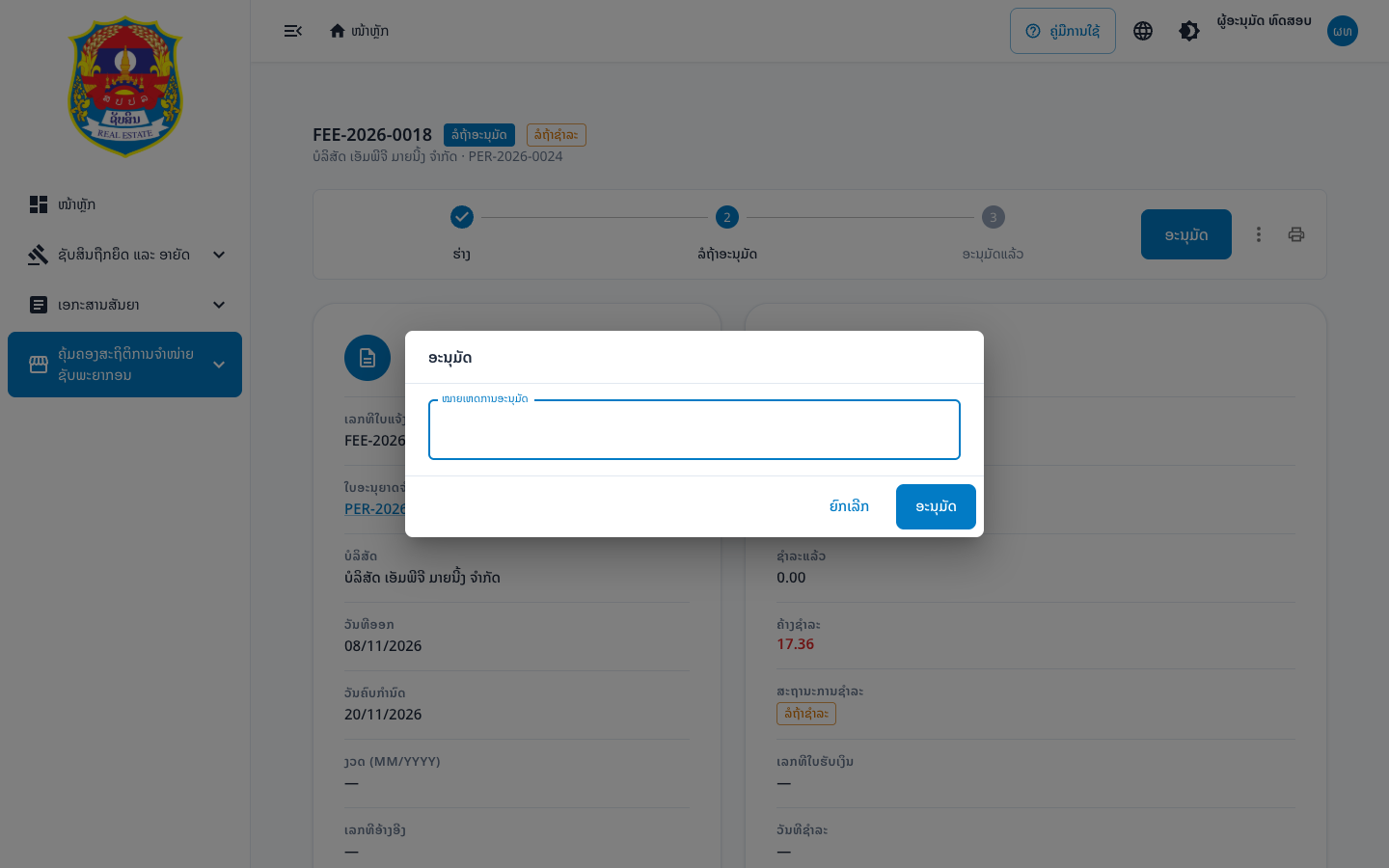
- Submit for approval and Approve open a confirmation window. The approval window has an optional Approval note.
- If Approve is greyed out, hover over it to see why. Typical reasons: the permit is not Active or has expired, or the quantity exceeds the permit's remaining weight.
- The ⋮ menu has Return for correction (the creator fixes it) and Cancel. Both need a reason of at least 10 characters.
Record payment
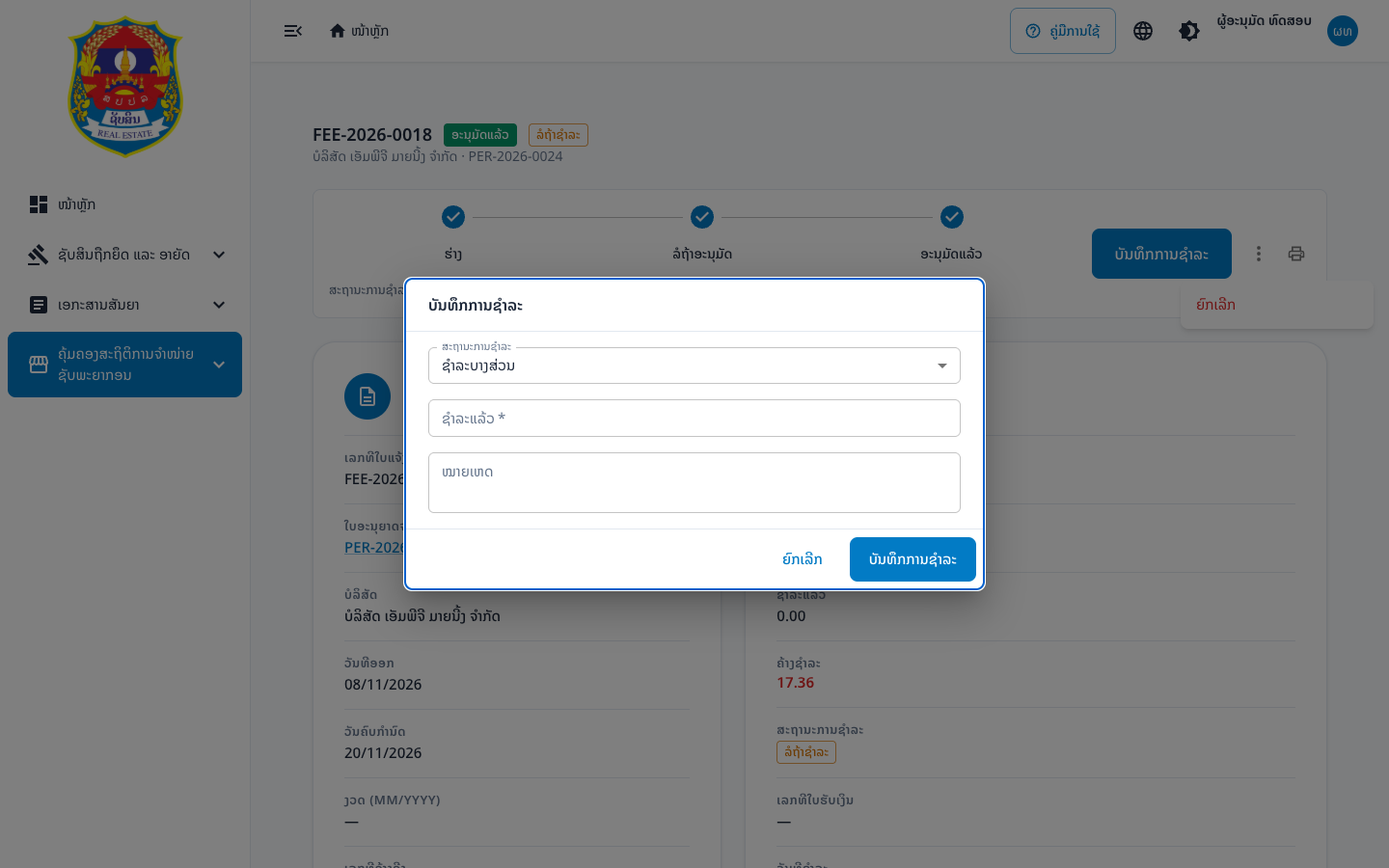
Once the notice is Approved, the next-step button is Record payment (for approvers). Payment goes through these steps:
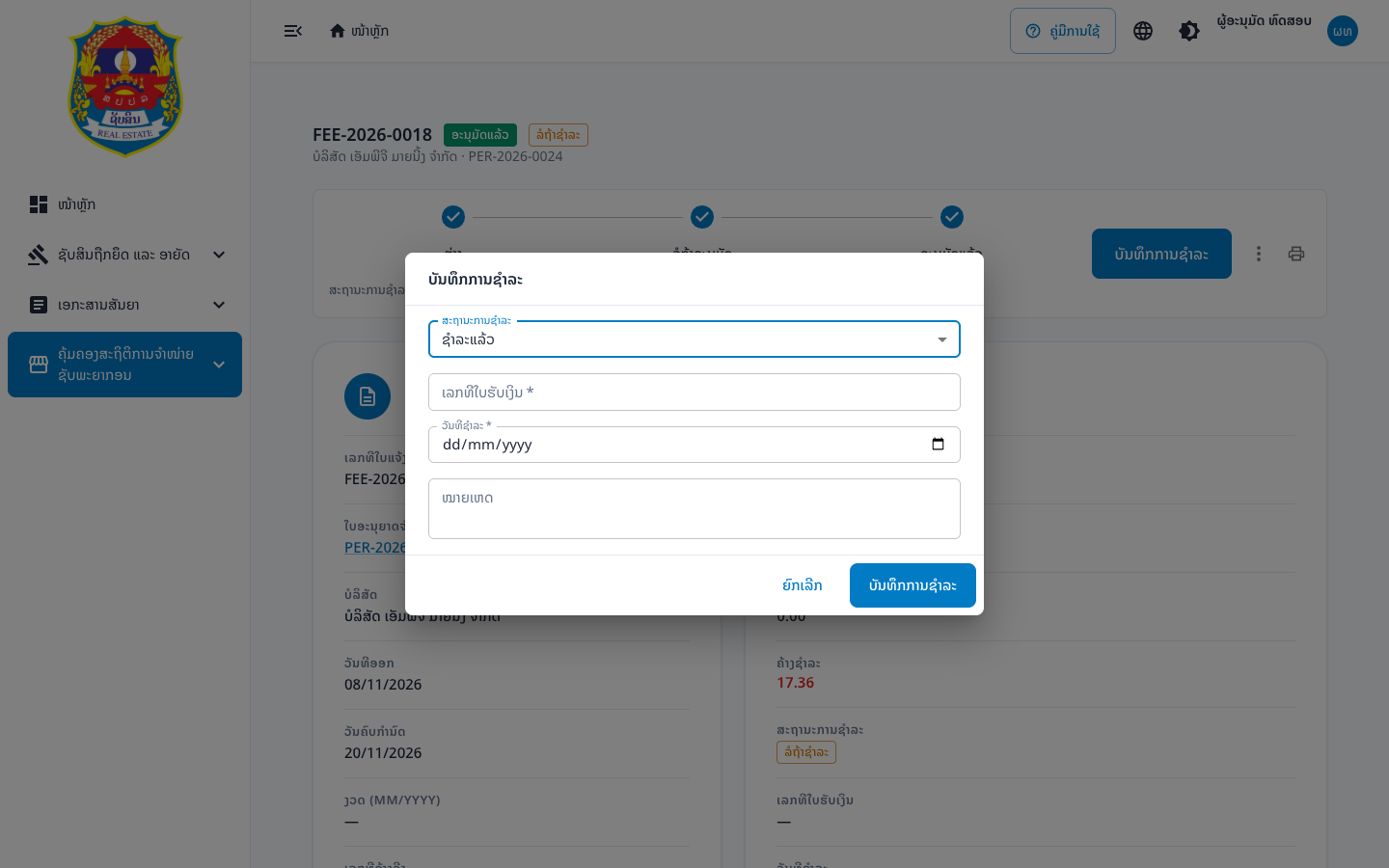
- Pending → choose Partially paid (type the amount paid) or Paid (the Receipt no. and Payment date are required).
- When it is Paid, click Record payment again to confirm Completed.
- To undo a wrong payment click ⋮ then Payment cancelled (a note is required).
When the payment becomes Completed, the system creates the movement permit for this notice automatically, in the Submitted status. You can see its link on the notice details page.
Print the notice
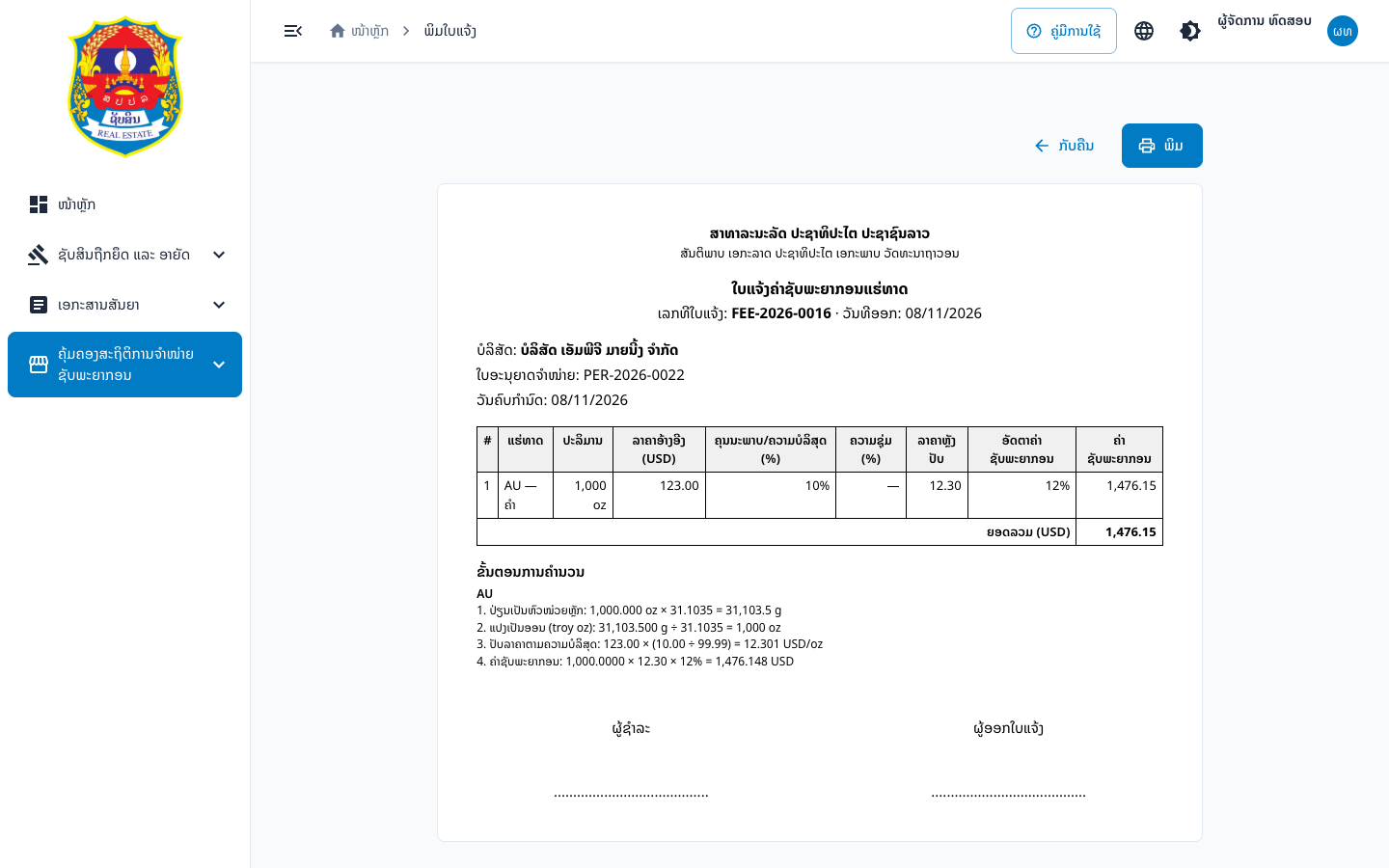
Click Print at the top right. The print page has the company name, permit, mineral lines, total and the calculation steps, with signature boxes for the payer and the issuer.